Tag: monitor-arm

  • Single vs Dual Monitor Arm: Which One Do You Actually Need?

    Single vs Dual Monitor Arm: Which One Do You Actually Need?

    This post contains affiliate links. If you buy through these links, we may earn a commission at no extra cost to you.

    If you’re setting up two monitors, one of the first decisions is whether to buy a dual-monitor arm on a shared base or two separate single arms. They look similar in photos but behave very differently on your desk.

    Dual monitor arm holding two screens

    How a dual arm works

    A dual monitor arm mounts both screens to a single vertical pole, usually with a crossbar or two arms branching off one base. This means one clamp point on your desk instead of two, which is useful if desk space or clamp room is tight. The tradeoff is that adjusting the height of the whole rig can shift both monitors at once, and the base itself takes up a fixed amount of depth right where it clamps on.

    How two single arms work

    Two independent single arms each get their own clamp and their own full range of motion. You can angle one monitor toward you for focused work and swing the other one flat or away when you’re not using it — something a shared dual arm usually can’t do as cleanly. The cost is two clamp points on your desk edge, which can be a problem on narrower desks or desks where the mounting area is limited.

    When a dual arm makes more sense

    If your monitors are the same size and you mostly want them sitting side by side at a fixed angle — a common setup for spreadsheet work, coding, or general multitasking — a dual arm is usually simpler to install and tidier looking, since there’s only one pole and one set of cables to manage.
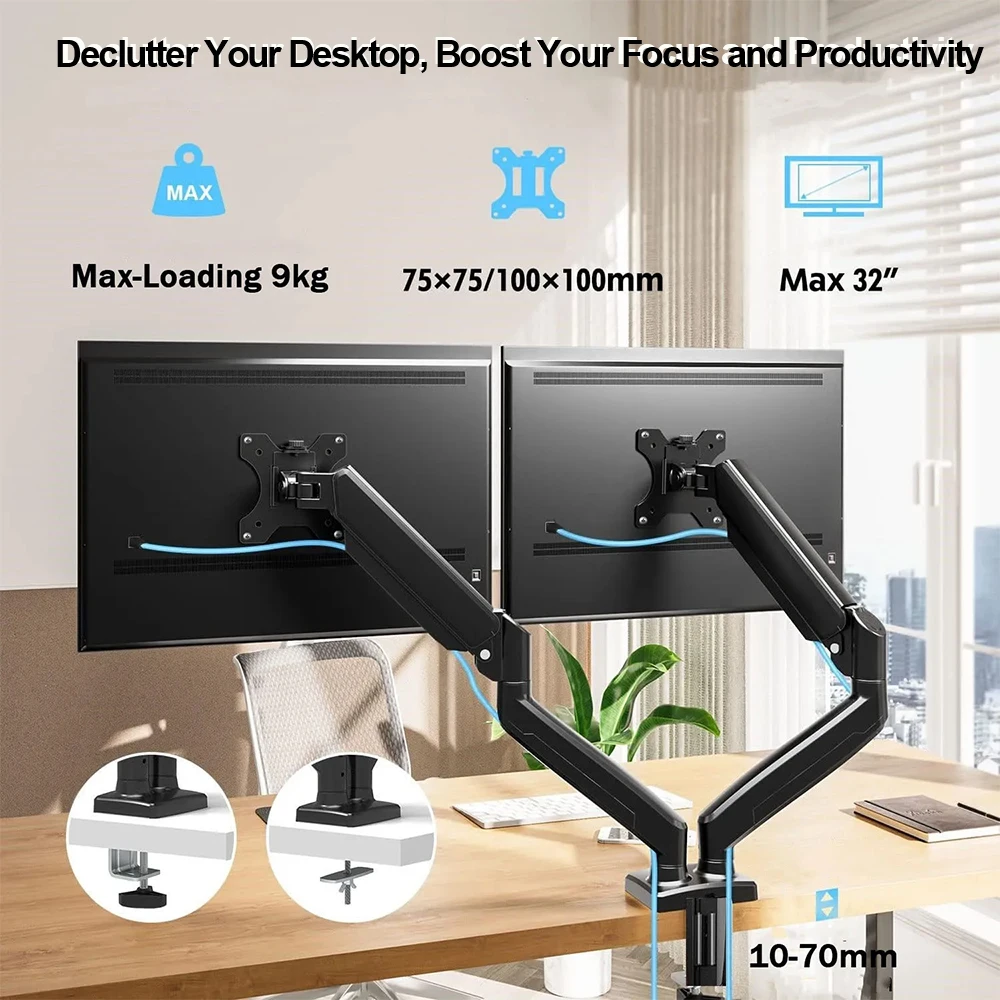
    Dual monitor arm decluttering desktop

    When two single arms make more sense

    If your monitors are different sizes, if you frequently rotate one into portrait mode, or if you like to angle one screen toward a webcam or a second person, independent arms give you the flexibility to do that without fighting the mechanism. Streamers, video editors, and anyone who reconfigures their desk often tend to prefer this setup.

    Desk space is the deciding factor for most people

    On a desk under about 45 inches wide, two separate clamp points can start to feel cramped, especially if you also have a keyboard tray or other clamp-mounted accessories competing for edge space. In that situation, a dual arm’s single mounting point is the more practical choice even if you’d otherwise prefer the flexibility of two arms.

    Example picks: a dual monitor arm on a shared base if your screens mostly stay side by side, or a single monitor arm (buy two) if you want each screen to move independently. (affiliate link)
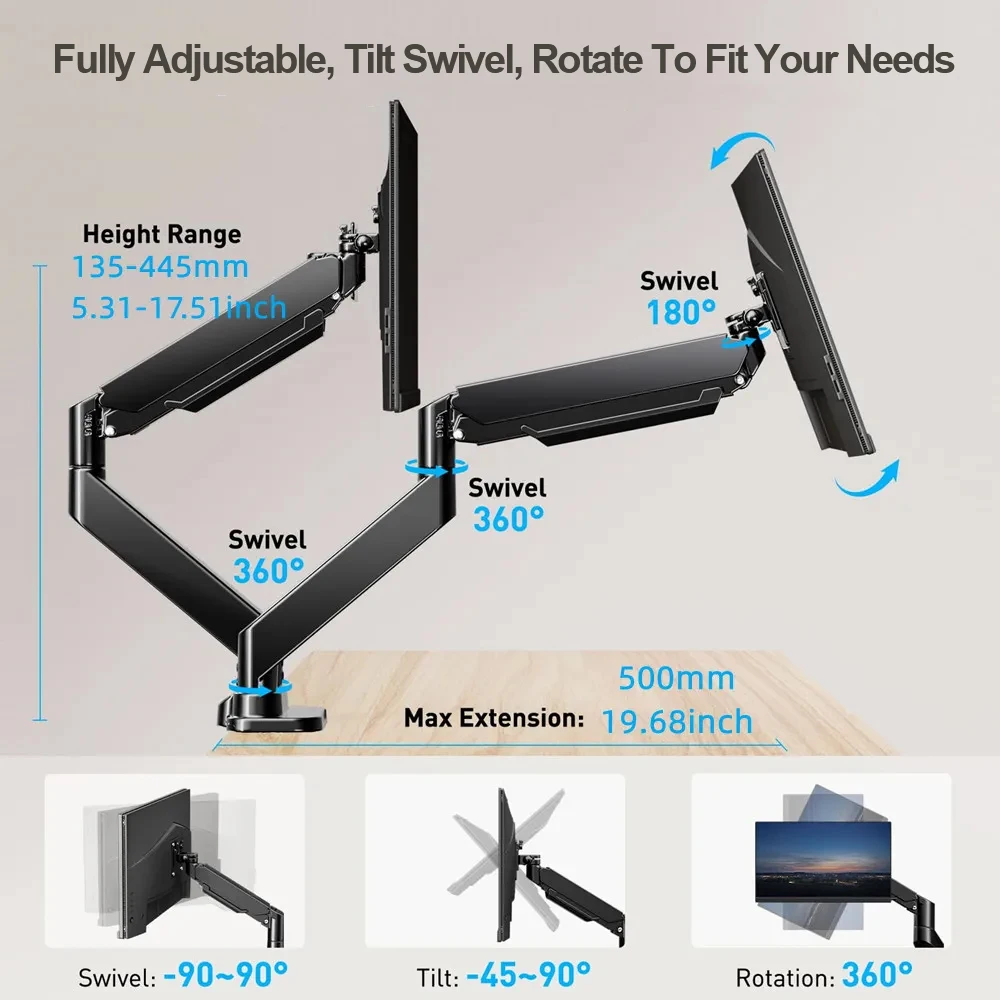
    Dual monitor arm swivel and tilt range

    Bottom line

    Neither option is objectively better — it comes down to how much you move your screens day to day and how much clear desk edge you actually have. If you’re not sure, picture your daily use: do you constantly re-angle one monitor, or do they basically stay put once set? That answer usually makes the decision for you.

  • How to Choose the Right Monitor Arm for Your Desk (Buying Guide)

    How to Choose the Right Monitor Arm for Your Desk (Buying Guide)

    This post contains affiliate links. If you buy through these links, we may earn a commission at no extra cost to you.

    A monitor arm looks like a simple accessory until you actually try to buy one. Between VESA standards, weight ratings, clamp types, and arm mechanisms, it’s easy to end up with something that either can’t hold your screen or won’t fit your desk at all. Here’s what actually matters before you buy.

    Single monitor arm mounted on a desk edge

    Measure your desk edge first

    Most monitor arms mount with a clamp that grips the back edge of your desk, and clamps have a maximum thickness they can grip — usually somewhere between 1.5 and 3.5 inches. Glass desks, very thick executive desks, and desks with a lip or trim can all cause fit problems. If your desk has an open back edge with no bracing underneath, a clamp mount will work fine. If it doesn’t, you’ll need a grommet mount instead, which goes through a drilled hole in the desktop.

    Check VESA compatibility

    Almost every monitor sold in the last decade has a VESA mounting pattern on the back — usually 75x75mm or 100x100mm for standard monitors, with wider patterns for ultrawide and larger screens. Check your monitor’s spec sheet for its VESA size before buying an arm, since not every arm supports both patterns out of the box.

    Match the weight rating to your actual monitor

    Every arm lists a weight range it can support, and gas-spring arms in particular need the monitor weight to fall within that range to move smoothly. Too light and the arm may drift upward on its own; too heavy and it will sag or refuse to hold position. If you plan to upgrade to a bigger monitor later, it’s worth buying an arm rated for more weight than you currently need.

    Monitor arm VESA mount close-up

    Gas spring vs friction arm

    Gas spring arms let you adjust height and angle with one hand and very little resistance, which is nice if you switch between sitting and standing often. Friction arms rely on tightened joints instead of a gas cylinder — they’re usually cheaper and hold position well once set, but adjusting them takes a bit more effort each time. If you rarely reposition your monitor once it’s set up, a friction arm is often the better value.

    Think about range of motion, not just height

    A good arm should let you pull the monitor closer or push it back, tilt it up or down, swivel it side to side, and rotate it into portrait mode if you want. Cheaper arms sometimes skip depth adjustment (extending forward and back), which matters more than people expect once the monitor is actually mounted — you’ll often want it slightly closer than you’d guess.

    Single vs dual clamp base

    If you’re running two monitors, decide early whether you want one dual arm on a shared base or two separate single arms. A shared base saves desk space but means both monitors move somewhat together; two independent arms give each screen full freedom of movement at the cost of an extra clamp point on your desk.

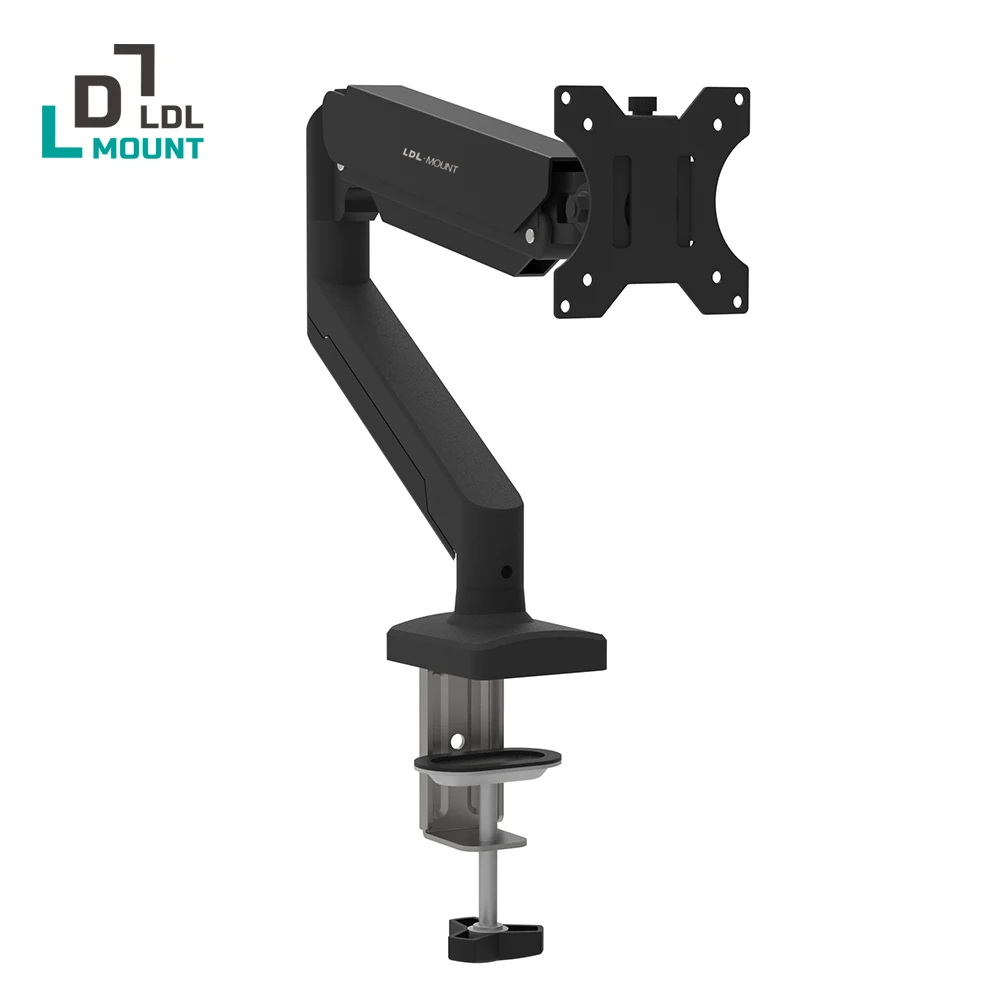
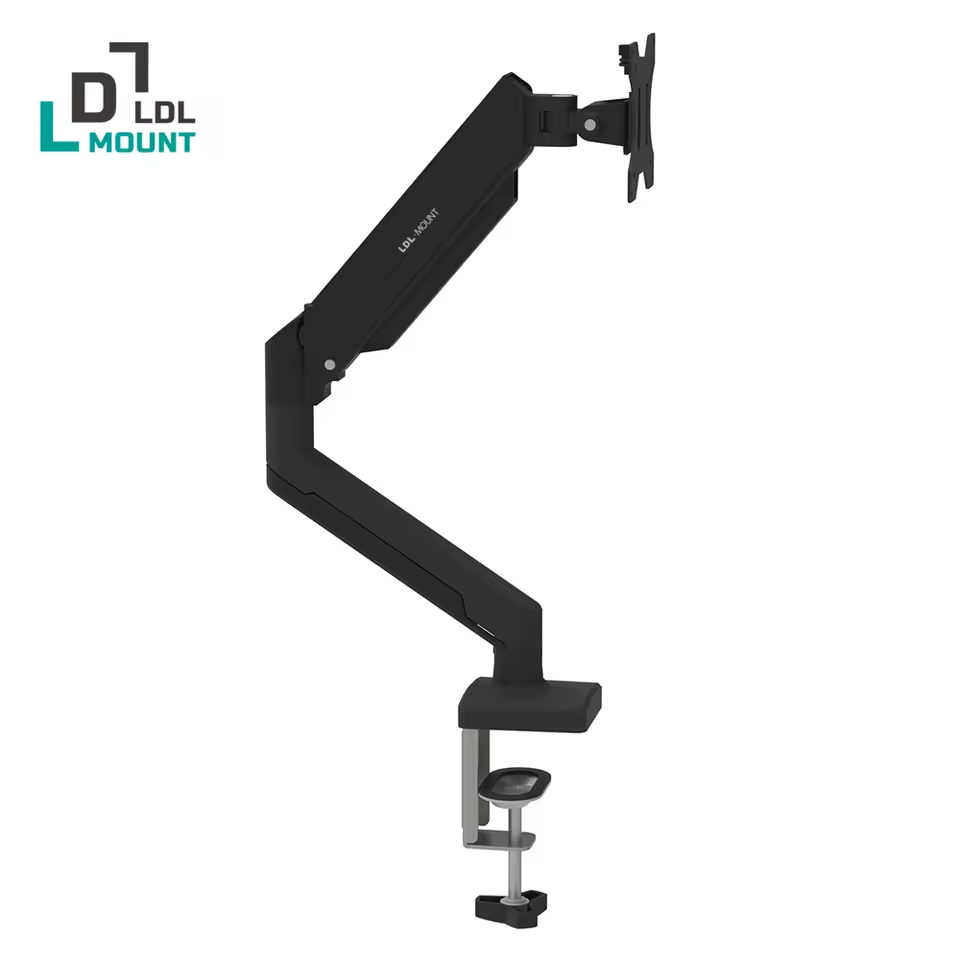
    Example pick: if you want a specific gas-spring arm to start with, the LDL-MOUNT Flex Fit single monitor arm covers the 17″-32″ range most people need. (affiliate link)

    Dual monitor arm for comparison

    Bottom line

    Before you add anything to your cart, confirm three things: your desk’s edge thickness and clearance underneath, your monitor’s VESA pattern, and your monitor’s weight versus the arm’s rated range. Get those three right and almost any reasonably built arm will serve you well for years.