Tag: home-office

  • How to Keep Your Desk Cool in Summer (Mini Fans & Airflow Tips)

    How to Keep Your Desk Cool in Summer (Mini Fans & Airflow Tips)

    This post contains affiliate links. If you buy through these links, we may earn a commission at no extra cost to you.

    A hot room makes focus harder, and a desk crowded with a laptop, monitor, and other heat-generating gear only makes it worse in summer. Here’s what actually helps beyond just turning up the air conditioning.
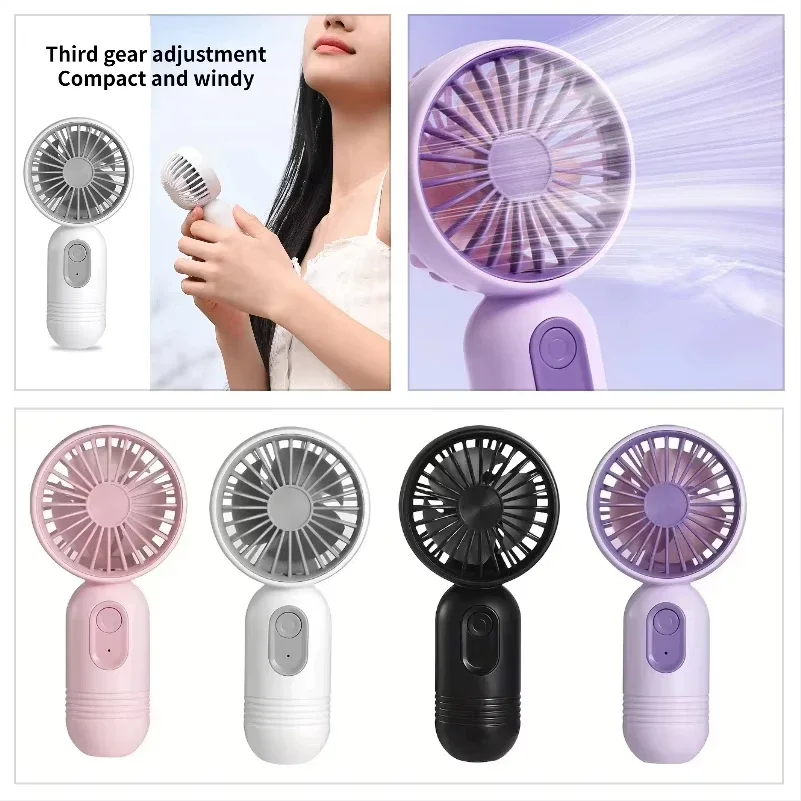
    Mini USB desk fan for summer cooling

    Our pick: rechargeable mini USB desk fan. (affiliate link)

    Airflow direction matters more than fan power

    A powerful fan aimed at the wrong angle does less than a smaller fan positioned to actually move air across you and away again. Aim a desk fan so air crosses your body and continues past you rather than blowing directly into a wall or enclosed corner, which recirculates warm air instead of clearing it.

    USB desk fans are worth it for a simple reason

    A small USB-powered fan clipped to a monitor or sitting on the desk doesn’t need its own outlet and can be repositioned instantly, which matters more than raw airflow for most desk setups. For most home offices, a modest USB fan aimed correctly beats a larger standalone fan aimed poorly.

    Your equipment is generating heat too

    A laptop, monitor, and any additional gear on your desk all produce heat that adds to room temperature, especially in an enclosed space. Elevating a laptop on a stand improves airflow underneath it and can measurably reduce the heat it dumps into your immediate space compared to sitting flat on the desk.

    Mini desk fan speed settings

    Block direct sun on your equipment, not just yourself

    Direct sunlight hitting a monitor or laptop heats the equipment itself, which then radiates that heat back into your workspace on top of making the screen harder to see. Closing blinds or repositioning your desk out of direct sun during peak hours helps your equipment as much as it helps you.

    A cooling desk mat or pad has limited but real value

    Cooling gel pads for wrists or forearms provide localized relief during hot stretches, though they’re a minor addition rather than a real fix for a hot room. They’re worth considering as a cheap add-on, not a primary solution.
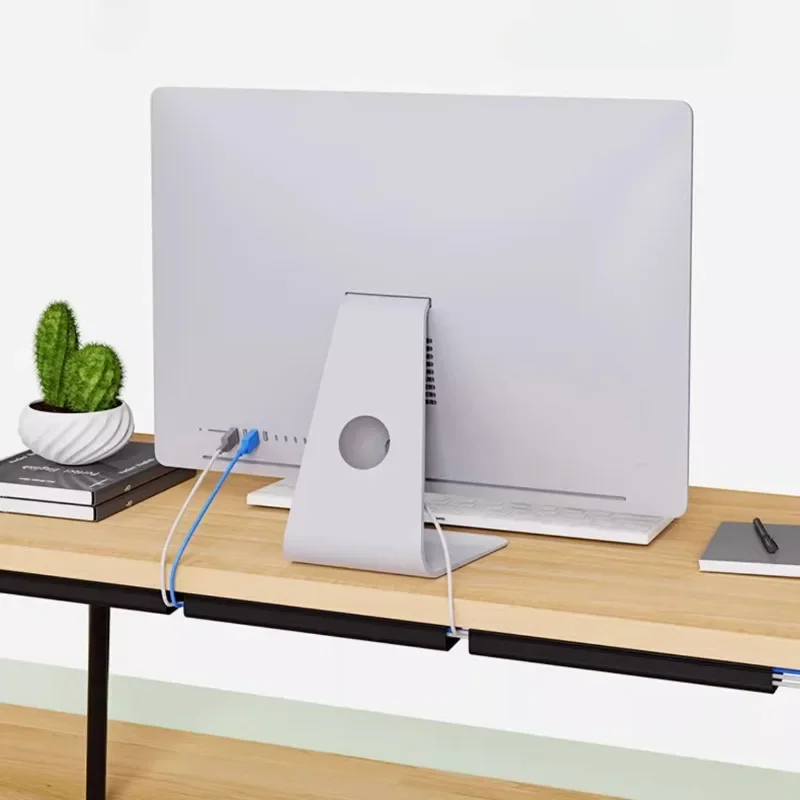
    Tidy desk setup staying cool

    Bottom line

    Position airflow to actually cross your body and exit, keep direct sun off your equipment, and consider a laptop stand to reduce the heat your own gear adds to the room. These matter more than fan strength alone.
  • Wireless Charging Pads for Your Desk: Worth It or Not?

    Wireless Charging Pads for Your Desk: Worth It or Not?

    This post contains affiliate links. If you buy through these links, we may earn a commission at no extra cost to you.

    Wireless charging pads promise to declutter a desk by removing charging cables, but whether they’re actually worth it depends on how you use your phone during the day. Here’s how to decide.

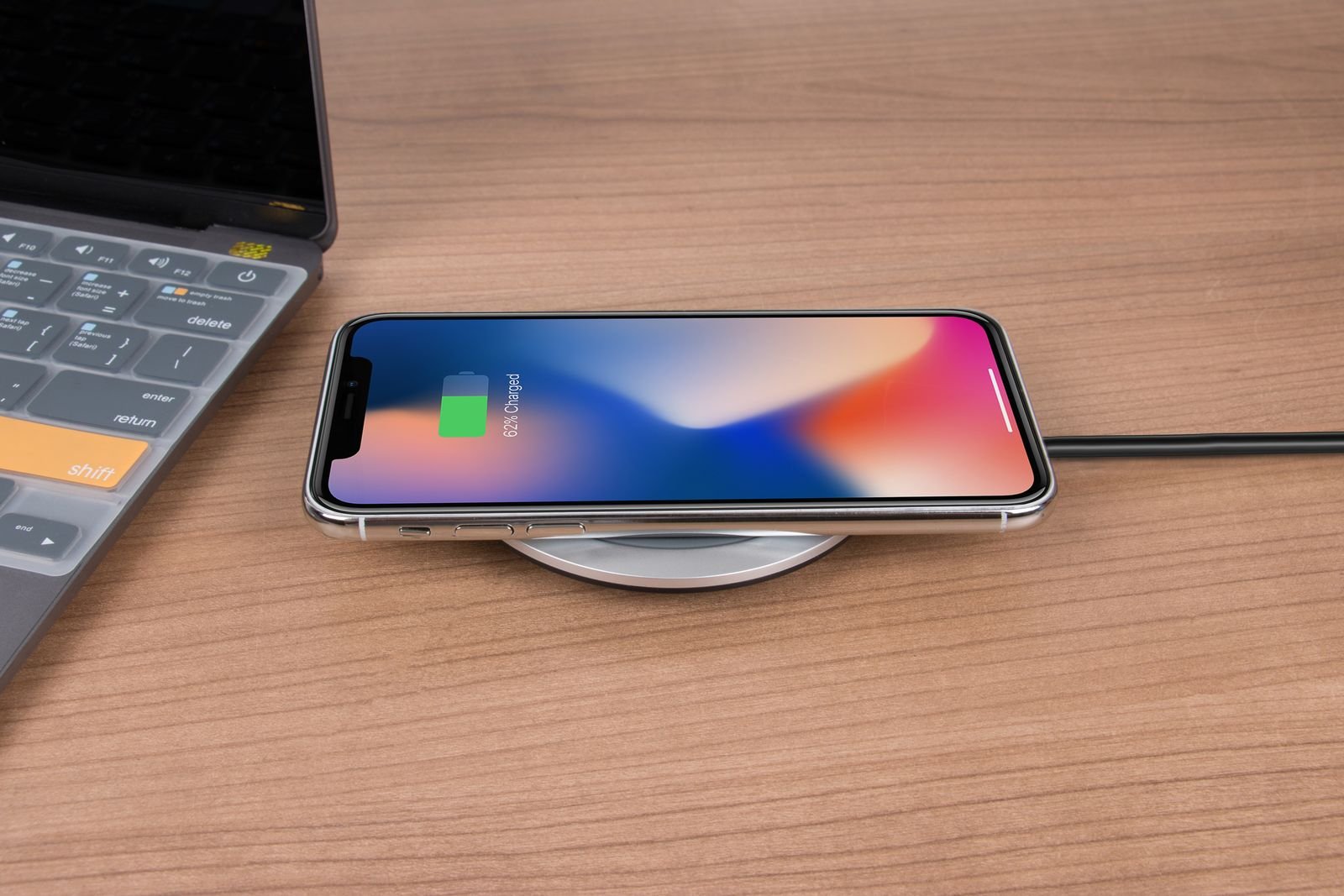
    Wireless charging pad on a desk

    Our pick: foldable fast-charging wireless charging stand. (affiliate link)

    Charging speed is usually the first disappointment

    Wireless charging is inherently slower and generates more heat than a wired connection, and cheaper pads are often capped well below what your phone can actually accept over a cable. If fast charging matters to you, check the pad’s wattage rating against your phone’s supported wireless charging speed, not just its top marketing number.

    Case compatibility trips people up

    Thick cases, cases with magnetic wallets, or cases containing metal can block or weaken a wireless charge significantly. If your phone charges slowly or inconsistently on a pad, the case is the first thing to check before assuming the pad is faulty.

    Where it actually helps: reducing cable clutter for occasional top-ups

    The real benefit of a desk charging pad isn’t fast charging — it’s the convenience of just setting your phone down without fumbling for a cable, which removes one more cable running across your desk. For someone who checks their phone frequently and wants a quick top-up, this convenience is real even if the charging itself is slower.

    Wireless charging stand dimensions

    Multi-device pads solve a specific problem

    If you also own wireless earbuds or a smartwatch with wireless charging, a multi-device pad that charges two or three things at once consolidates what would otherwise be several separate cables and bricks into one spot on your desk — a genuine desk-clutter win, not just a phone-charging one.

    When a cable is still the better choice

    If you actively use your phone while it charges — for calls, video, or reference material during work — a cable lets you pick the phone up and keep charging in a way a pad doesn’t. For heavy, active daytime use, a cable is often more practical despite being less “clean” looking.

    Phone fast charging wirelessly

    Bottom line

    A wireless pad is worth it if your priority is desk tidiness and occasional top-ups, especially in a multi-device version. If you need fast charging or use your phone actively while it charges, stick with a cable.

  • USB Hub vs Docking Station: Which Do You Need for Your Setup

    USB Hub vs Docking Station: Which Do You Need for Your Setup

    This post contains affiliate links. If you buy through these links, we may earn a commission at no extra cost to you.

    USB hubs and docking stations solve overlapping problems, and it’s easy to buy the wrong one for what you actually need. Here’s the real difference and how to tell which one fits your setup.

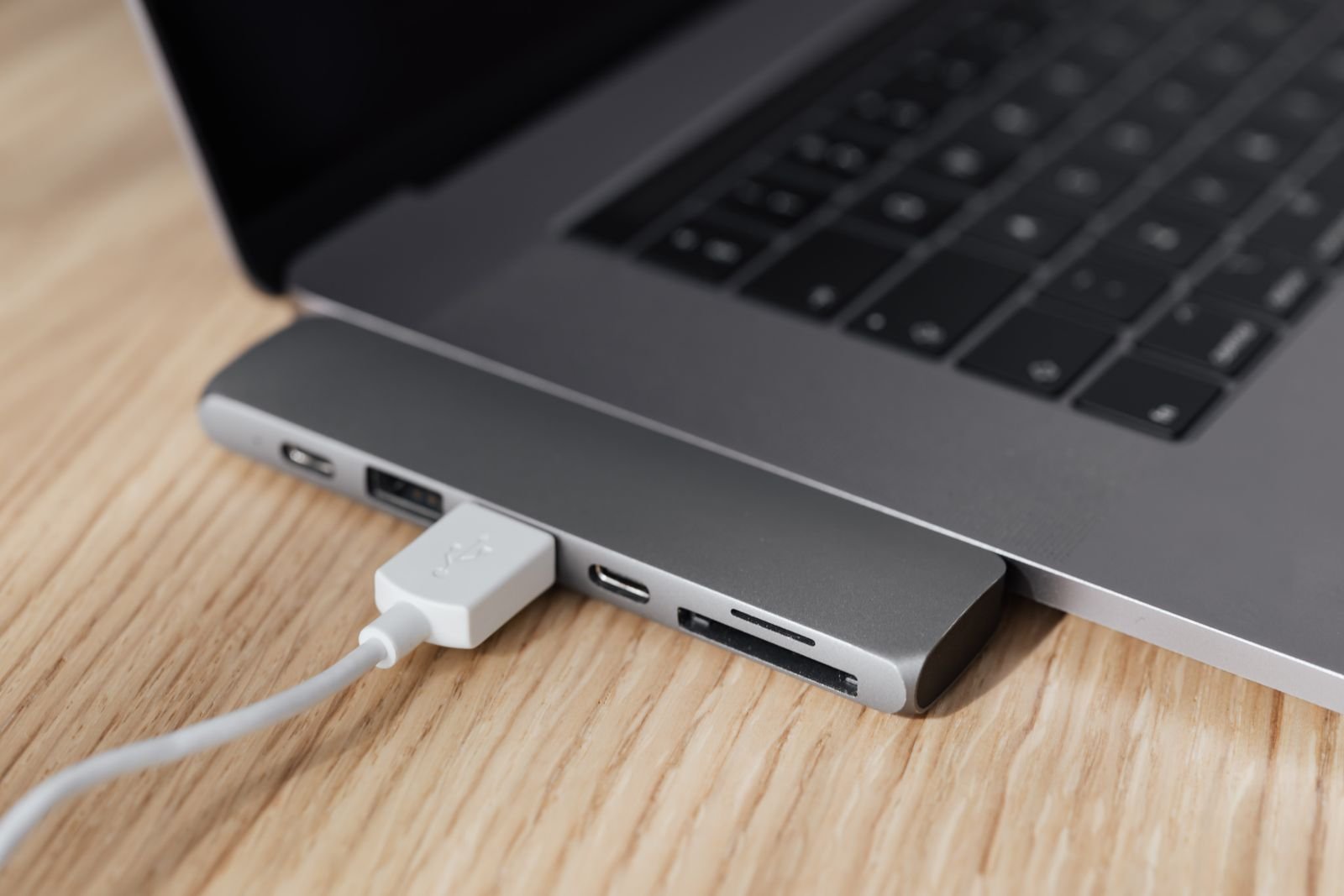
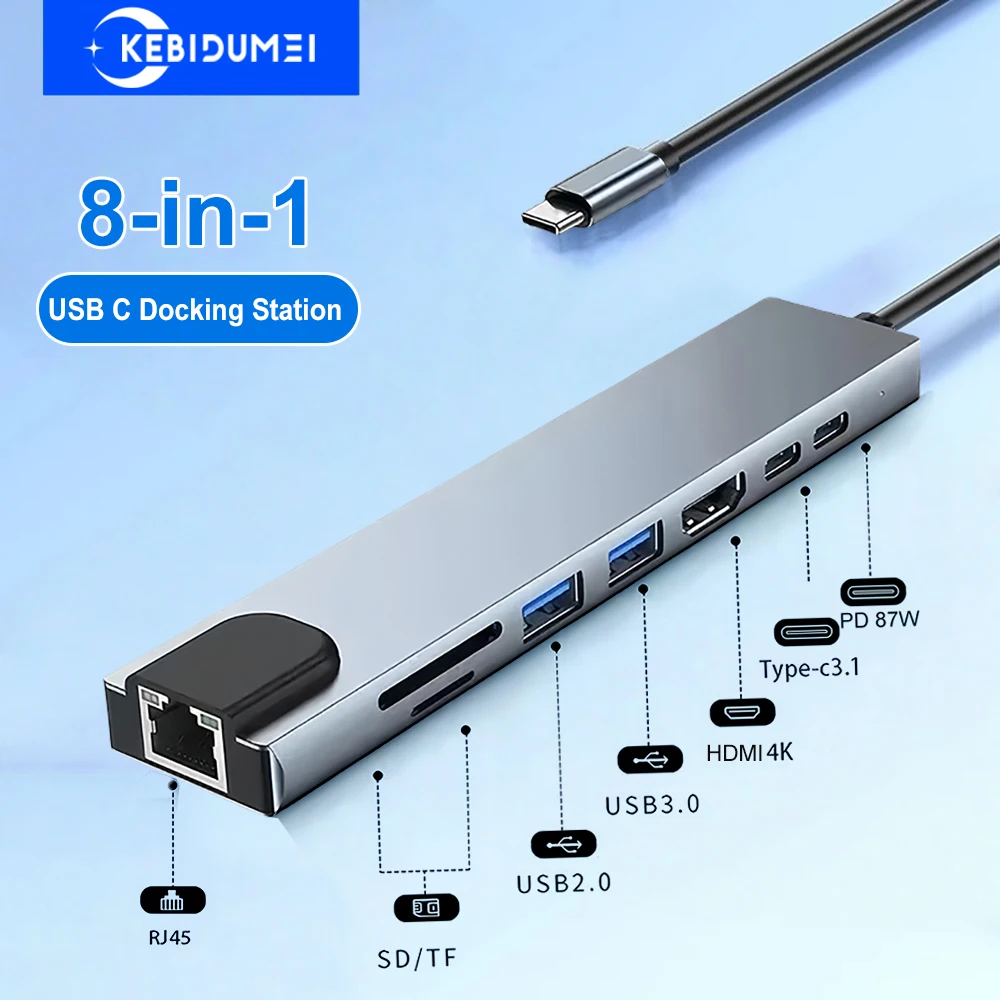
    USB C hub and docking station

    Our pick: 8-in-1 USB-C hub/docking station with 4K HDMI and PD. (affiliate link)

    What a USB hub actually does

    A USB hub is essentially a port multiplier — it takes one USB connection from your laptop and splits it into several USB ports, sometimes with an SD card reader or a couple of other basics added in. It’s cheap, small, and solves the simple problem of “I need more USB ports than my laptop has.”

    What a docking station adds on top

    A docking station does everything a hub does, plus video output (often multiple monitor support), higher-power charging for your laptop through the same cable, and sometimes wired ethernet. The tradeoff is a higher price and, on some models, drivers or software to get full functionality working.

    If you only need more ports, a hub is enough

    If your actual problem is “I plugged in a mouse and now I’m out of USB ports,” a simple hub solves it for a fraction of a docking station’s price. Buying a full dock for this alone is spending money on capability you won’t use.

    USB C hub power delivery to laptop

    If you connect and disconnect a laptop daily, a dock pays for itself

    The real value of a docking station shows up if you move a laptop between a desk setup and elsewhere regularly — instead of plugging in a monitor cable, power cable, and multiple peripherals separately every time, one dock cable handles all of it in a single connection. If you do this daily, the time saved adds up fast.

    Check your laptop’s actual port and power specs

    Not every laptop can be charged through the same USB-C port used for video and data, and not every dock delivers enough wattage for larger laptops. Check your laptop’s charging requirements and the dock’s rated power delivery before buying, especially for larger 15-16″ laptops that often need 90W or more.

    USB hub driving external 4K display

    Bottom line

    Buy a hub if you just need more ports occasionally; buy a dock if you connect and disconnect a laptop from a full desk setup regularly and want it down to one cable. Match the purchase to how often you actually dock, not to the longest feature list.

  • How to Reduce Eye Strain With Better Desk Lighting

    How to Reduce Eye Strain With Better Desk Lighting

    Eye strain at a desk is often blamed entirely on screen time, but lighting is just as often the real cause — or at least a major contributor. Here’s what actually helps, beyond the generic advice to “take breaks.”

    Desk lamp reducing eye strain with warm light

    Avoid working under a single overhead light

    A single overhead light creates high contrast between a bright ceiling fixture and a comparatively dim desk surface, which forces your eyes to constantly readjust as you look between your screen and the room. Adding a dedicated desk lamp brings the light level around your monitor closer to the light level of the screen itself, reducing that constant readjustment.

    Match your screen brightness to the room, not the other way around

    A screen that’s much brighter or dimmer than its surroundings makes your eyes work harder to adjust. In a bright room, increase screen brightness to match; in a dim room, lower it. If you work at different times of day, a monitor with automatic brightness or a lamp with adjustable output makes this easier to keep in balance.

    Position lighting to avoid screen glare

    Any light source that reflects directly off your monitor — including window light — creates glare that forces your eyes to strain around it. Position desk lamps to the side rather than behind your monitor, and angle or curtain windows so they don’t reflect directly into the screen during work hours.

    Warm desk lamp reducing glare

    Warmer light in the evening reduces strain from blue light

    Cooler, bluer light in the evening can increase eye strain and interfere with winding down later. Switching to warmer light tones in the evening — either with an adjustable lamp or your monitor’s built-in blue light filter — reduces this without requiring you to stop working earlier.

    The 20-20-20 rule still matters

    Even with ideal lighting, staring at a fixed focal distance for hours tires your eye muscles. Every 20 minutes, looking at something roughly 20 feet away for 20 seconds gives your eyes a genuine break that lighting alone can’t replace.

    Adjustable lamp brightness control

    Bottom line

    Add a dedicated desk lamp, keep screen brightness matched to the room, and avoid direct glare — those three changes address most lighting-related eye strain. Screen breaks handle the rest.

  • Small Desk, Big Clutter: Organization Ideas for Compact Spaces

    Small Desk, Big Clutter: Organization Ideas for Compact Spaces

    A small desk clutters faster than a large one simply because there’s less surface to absorb the mess — the same amount of stuff looks and feels far more chaotic on a 40-inch desk than a 60-inch one. Here’s how to actually fix that without buying a bigger desk.

    Small desk being organized to reduce clutter

    Go vertical before you go wider

    When desk surface is limited, the fastest way to reclaim space is to move things off the desktop entirely and onto the wall or a vertical riser. Pegboards, wall-mounted shelves, and monitor stands with built-in storage underneath all free up desk area without needing more floor space.

    Cut down to what you touch daily

    Small desks amplify the cost of keeping things “just in case” — an item you touch once a month is taking up space you need every day. Do a quick audit: anything not used in the past two weeks probably belongs in a drawer, on a shelf, or somewhere else entirely.

    Use the space under the desk, not just on it

    Under-desk drawer organizers, cable trays, and small clip-on bins use space that’s otherwise sitting empty. This is especially valuable on compact desks since it doesn’t compete with your limited desktop real estate at all.

    Drawer organizer reducing desk clutter

    Stack instead of spreading out

    A monitor riser with drawer space underneath, or stackable organizer trays, let you use vertical space on the desk itself rather than spreading items across the whole surface. This matters more on a small desk, where spreading items out eats into your working area almost immediately.

    Cable clutter counts as visual clutter

    On a small desk, loose cables are more visually dominant simply because there’s less other surface to distract from them. Cleaning up cable routing often makes a compact desk look noticeably less cluttered even if you haven’t removed a single item from the desktop.

    Cable tray keeping small desk tidy

    Bottom line

    On a small desk, moving things off the surface — up onto the wall, down under the desk, or into drawers — matters more than any single organizer product. Solve the space problem in three dimensions, not just across the desktop.

  • How to Pick a Desk Mat That Doesn’t Slide Around

    How to Pick a Desk Mat That Doesn’t Slide Around

    This post contains affiliate links. If you buy through these links, we may earn a commission at no extra cost to you.

    A desk mat that slides every time you move your mouse or lean on it is more annoying than not having one at all. The difference between a mat that stays put and one that doesn’t usually comes down to a few specific factors most people don’t check before buying.

    Large non-slip desk mat

    Our pick: large wool felt desk mat with non-slip backing. (affiliate link)

    Backing material is the actual answer

    The single biggest factor in whether a mat slides is its backing, not its size or top surface. Rubber backing grips a desk surface far better than a smooth fabric or thin foam backing. Look specifically for “non-slip rubber base” or similar wording in the listing rather than assuming any backing will do the job.

    Desk surface matters as much as the mat

    The same mat behaves differently on different desks — a rubber-backed mat grips well on laminate or wood but can still slide on glass or very smooth painted surfaces. If you have a glass desk, look specifically for mats reviewed for glass compatibility, since standard rubber backing sometimes isn’t enough there.

    Size and weight work together

    A larger mat has more surface area in contact with the desk, which generally makes it more stable even with the same backing — a full-desk mat tends to stay put better than a small mouse-pad-sized one. Thicker mats also add a bit of weight that helps resist sliding compared to very thin sheet-style mats.

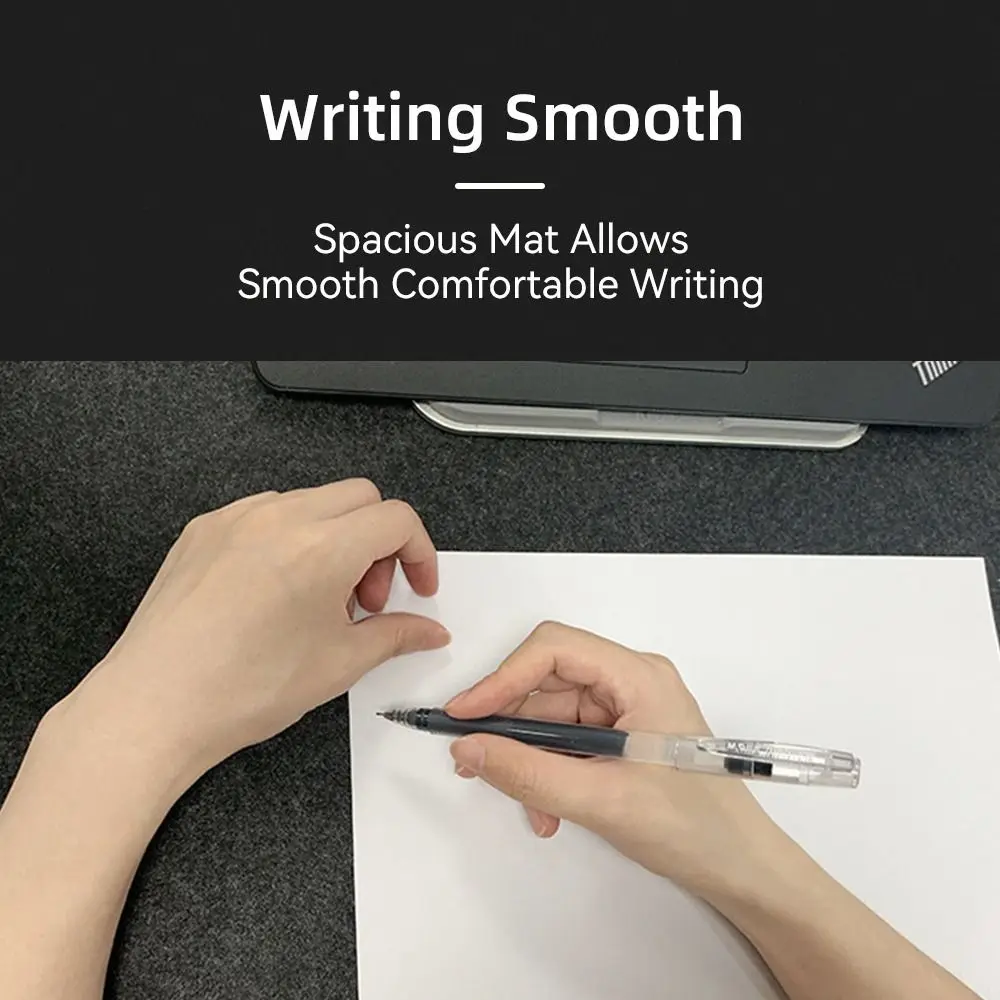
    Writing smoothly on a large desk mat

    Edge stitching prevents a different problem

    Fraying edges on fabric-surfaced mats aren’t a sliding issue, but they’re a common complaint after a few months of daily use. Stitched or reinforced edges hold up considerably longer than raw-cut edges, especially on mats you’ll be resting your wrists against regularly.

    Cleaning is a real factor, not an afterthought

    Mats absorb spills, dust, and skin oils over time, and how a mat responds to cleaning affects how long it stays usable. Wipeable synthetic-leather-style surfaces are easier to maintain long-term than woven fabric tops, which tend to hold stains and are harder to fully dry.

    Desk mat scratch resistance test

    Bottom line

    Check the backing material before anything else — a rubber non-slip base solves the sliding problem more reliably than size, weight, or brand. Everything past that is mostly about surface feel and how easy the mat is to keep clean.

  • Wrist Pain at Your Desk? Here’s What Actually Helps

    Wrist Pain at Your Desk? Here’s What Actually Helps

    Wrist pain from desk work is usually a setup problem before it’s an equipment problem, but the right gear does help once the underlying position is fixed. Here’s what actually makes a difference, in the order that matters most.

    Ergonomic desk setup with wrist support

    Check your wrist angle first, before buying anything

    Wrist pain often comes from typing with wrists bent upward because the keyboard sits too high, or bent to the side because the mouse is positioned awkwardly. Before buying a wrist rest or a new mouse, check whether your keyboard and mouse height lets your wrists stay roughly straight and level with your forearms — that alone fixes a surprising amount of discomfort.

    Wrist rests help positioning, not just padding

    A wrist rest’s job isn’t to cushion constant pressure — resting your wrists on it while actively typing can actually make things worse. Its real job is to keep your wrist in a neutral, straight position during pauses between typing. Look for a rest with enough height to match your keyboard’s front edge so your wrist doesn’t tilt up or down when you do rest it.

    Vertical mice change the angle entirely

    A standard mouse keeps your forearm rotated palm-down for hours, which for some people is a major source of wrist and forearm strain. A vertical mouse keeps your hand in more of a handshake position, reducing that rotation. It takes a week or two of adjustment, but people who switch rarely go back.

    Ergonomic keyboard and mouse setup on a desk mat

    Split and tented keyboards reduce ulnar deviation

    Standard keyboards force your wrists to angle inward slightly to reach the center keys, a position that adds up over a full workday. Split keyboards let each half angle outward to match your natural shoulder width, and tented models raise the inner edges to reduce forearm rotation as well. These have a learning curve but are worth it for anyone typing heavily every day.

    Take breaks even with good equipment

    No wrist rest or ergonomic mouse fully offsets hours of continuous repetitive motion. Short breaks every 30-45 minutes to change position and stretch your wrists matter as much as any single piece of gear.

    Monitor arm supporting proper viewing height

    Bottom line

    Fix your keyboard and mouse height and angle first — it’s free and fixes more than people expect. Once positioning is right, a properly sized wrist rest and, if you type heavily, a vertical or split ergonomic setup are the upgrades worth spending on.

  • How to Set Up a Standing Desk Converter Without Breaking Your Budget

    How to Set Up a Standing Desk Converter Without Breaking Your Budget

    This post contains affiliate links. If you buy through these links, we may earn a commission at no extra cost to you.

    A full electric standing desk can run several hundred dollars, but a desk converter — a platform that sits on top of your existing desk and raises your monitor and keyboard — gets you most of the benefit for a fraction of the cost. Here’s how to set one up without wasting money on the wrong choice.

    Standing desk converter with dual monitor workstation

    Our pick: 32-inch dual-tier standing desk converter with gas spring lift. (affiliate link)

    Decide between a single-tier and dual-tier converter

    Single-tier converters raise your monitor and keyboard on the same flat surface, which is cheaper and simpler but forces an awkward typing angle when standing, since the keyboard ends up too high relative to your elbows. Dual-tier converters have a separate lower shelf for the keyboard, keeping your elbow angle closer to 90 degrees regardless of height — worth the extra cost if you’ll actually type for extended periods while standing.

    Check your desk’s depth before buying

    Converters need enough desk depth behind them to sit stable, and enough depth in front for the keyboard tray to extend without hitting you. Measure your desk’s usable depth before ordering — a converter that’s too deep for your desk becomes a constant annoyance.

    Weight capacity adds up faster than expected

    A converter’s rated weight capacity needs to cover your monitor (or monitors), keyboard, mouse, and anything else that sits on the raised platform — not just the monitor alone. Add up your actual gear weight before assuming a budget converter’s rated capacity is enough headroom.

    Standing desk converter with monitors and laptop

    Gas spring vs crank vs electric lift

    Gas spring converters lift and lower with one motion and a release lever, which is fast but can feel abrupt until you get used to it. Crank converters are cheaper and more stable at any height but slower to adjust. Electric converters cost the most but adjust at the push of a button and are the easiest to use multiple times a day — which matters, since a converter that’s annoying to adjust tends to just get left in one position.

    Give yourself a transition plan

    Standing all day immediately is uncomfortable for almost everyone and is a common reason people abandon a converter within the first month. Start with short standing intervals — 20-30 minutes at a time — and increase gradually rather than trying to stand for hours right away.

    Standing desk converter dimensions

    Bottom line

    A dual-tier converter with a weight capacity comfortably above your actual gear, sized to your desk’s real depth, will get more actual daily use than a cheaper single-tier model that’s technically less expensive but awkward to type on.

  • Warm vs Cool Lighting for Home Office: What Works Best

    Warm vs Cool Lighting for Home Office: What Works Best

    This post contains affiliate links. If you buy through these links, we may earn a commission at no extra cost to you.

    Light color temperature — measured in Kelvin — has a bigger effect on how a home office feels and functions than most people expect when picking a desk lamp. Here’s how warm and cool lighting actually differ in practice, and which situations call for each.

    LED desk lamp with adjustable color temperature

    What the numbers mean

    Warm light sits around 2700K to 3000K and has a yellowish, cozy tone similar to a traditional incandescent bulb. Cool light sits around 5000K to 6500K and looks closer to white or slightly blue, similar to daylight. Most adjustable desk lamps let you shift somewhere along this range rather than locking you into one temperature.

    Cool light for focus-heavy work

    Cooler, whiter light tends to feel more alert and is generally easier on the eyes for detail-heavy tasks like reading small text, editing spreadsheets, or close design work, since it more closely resembles daylight. Many people find it easier to stay focused under cool light during the middle of a workday.

    Warm light for calls, reading, and evening work

    Warm light is generally more comfortable for longer stretches without feeling harsh, and tends to look better on video calls since it’s flattering to skin tone in a way cool white light often isn’t. If you work into the evening, warm light is also less likely to interfere with winding down afterward compared to cooler, bluer light.

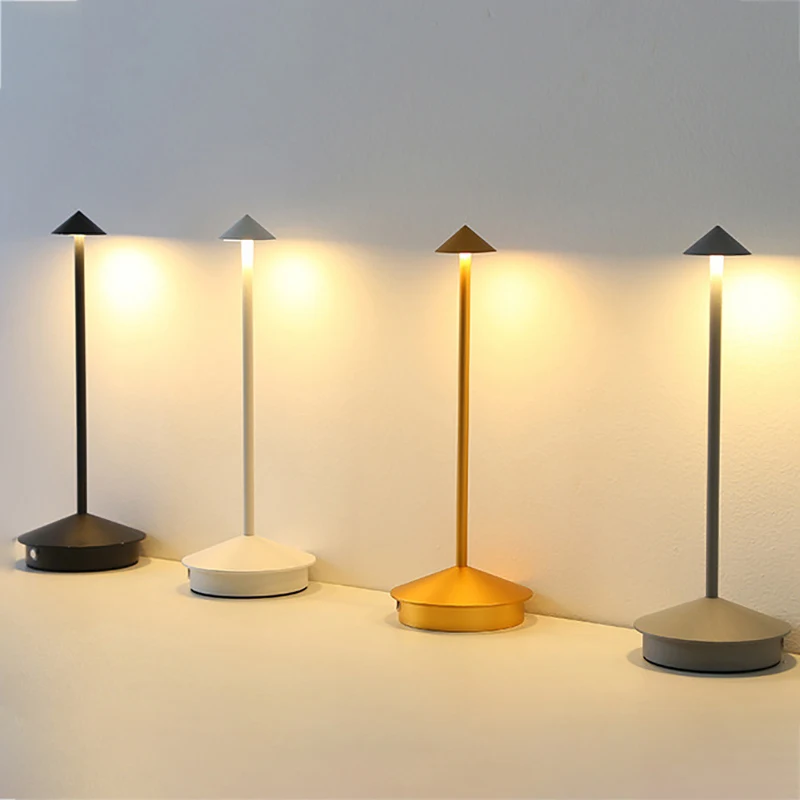
    LED desk lamps in different color tones

    Why adjustable lamps solve the debate

    Rather than committing to one temperature, a lamp with adjustable color temperature lets you shift from cool light during focused morning work to warmer light for afternoon calls or evening sessions. This is generally more useful than buying two separate lamps, since your lighting needs usually change throughout the day rather than staying fixed.

    Brightness matters as much as color

    Color temperature gets most of the attention, but brightness (measured in lumens) and where the light is positioned matter just as much. A lamp angled to reduce glare on your screen, positioned to avoid harsh shadows on your hands while writing, generally makes a bigger comfort difference than color temperature alone.

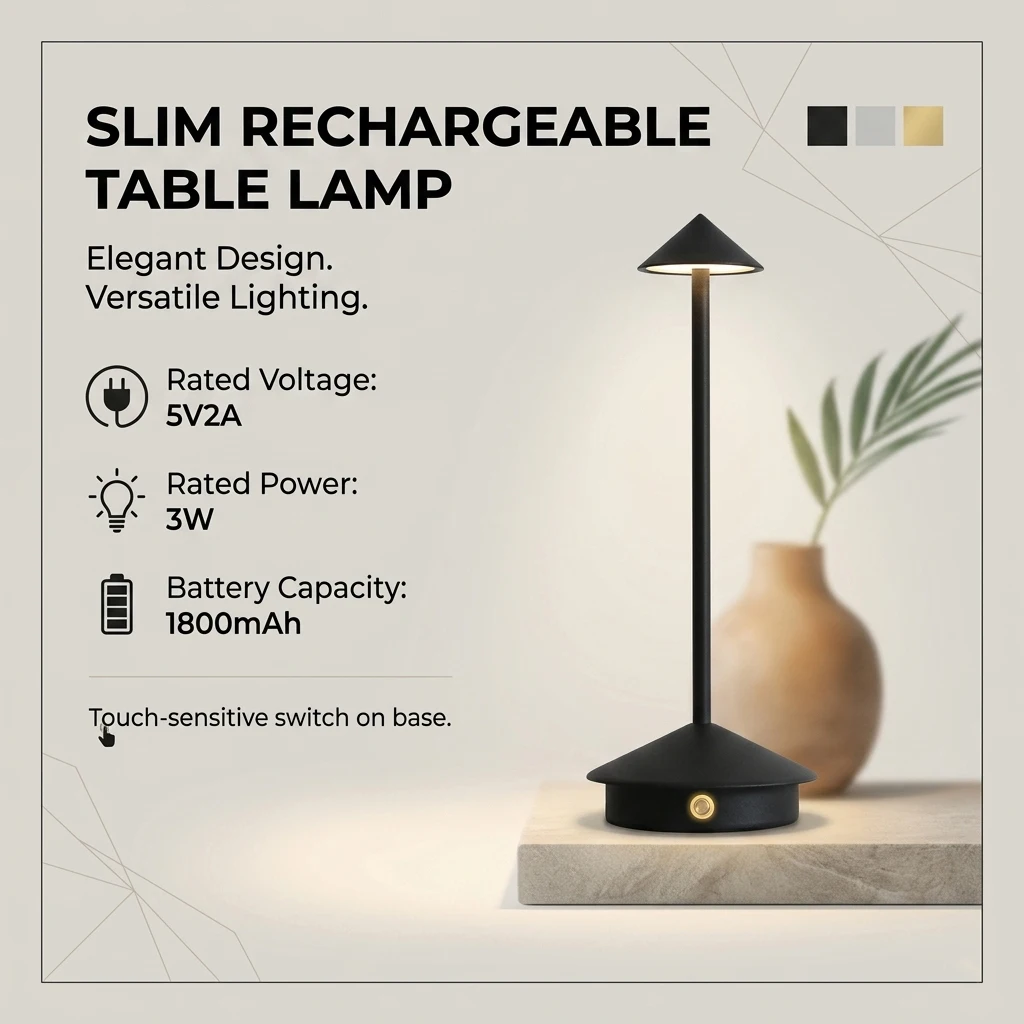
    Example pick: a rechargeable LED desk lamp with 3 adjustable color temperatures lets you switch between cool and warm without buying two lamps. (affiliate link)

    Slim rechargeable desk lamp specs

    Bottom line

    There’s no universally “correct” color temperature — cool light suits focused daytime work, warm light suits calls and evening hours, and an adjustable lamp lets you avoid choosing just one. If you only take away one thing, prioritize a lamp with adjustable temperature and brightness over a fixed-temperature lamp, regardless of which single color you’d otherwise pick.

  • How Much Desk Storage Do You Really Need? (By Work Type)

    How Much Desk Storage Do You Really Need? (By Work Type)

    This post contains affiliate links. If you buy through these links, we may earn a commission at no extra cost to you.

    Desk storage needs vary a lot more by job type than most buying guides admit. Someone doing video calls all day has almost nothing to store; someone doing paperwork or physical craft work needs real drawer space. Here’s a more realistic way to think about it based on how you actually work.

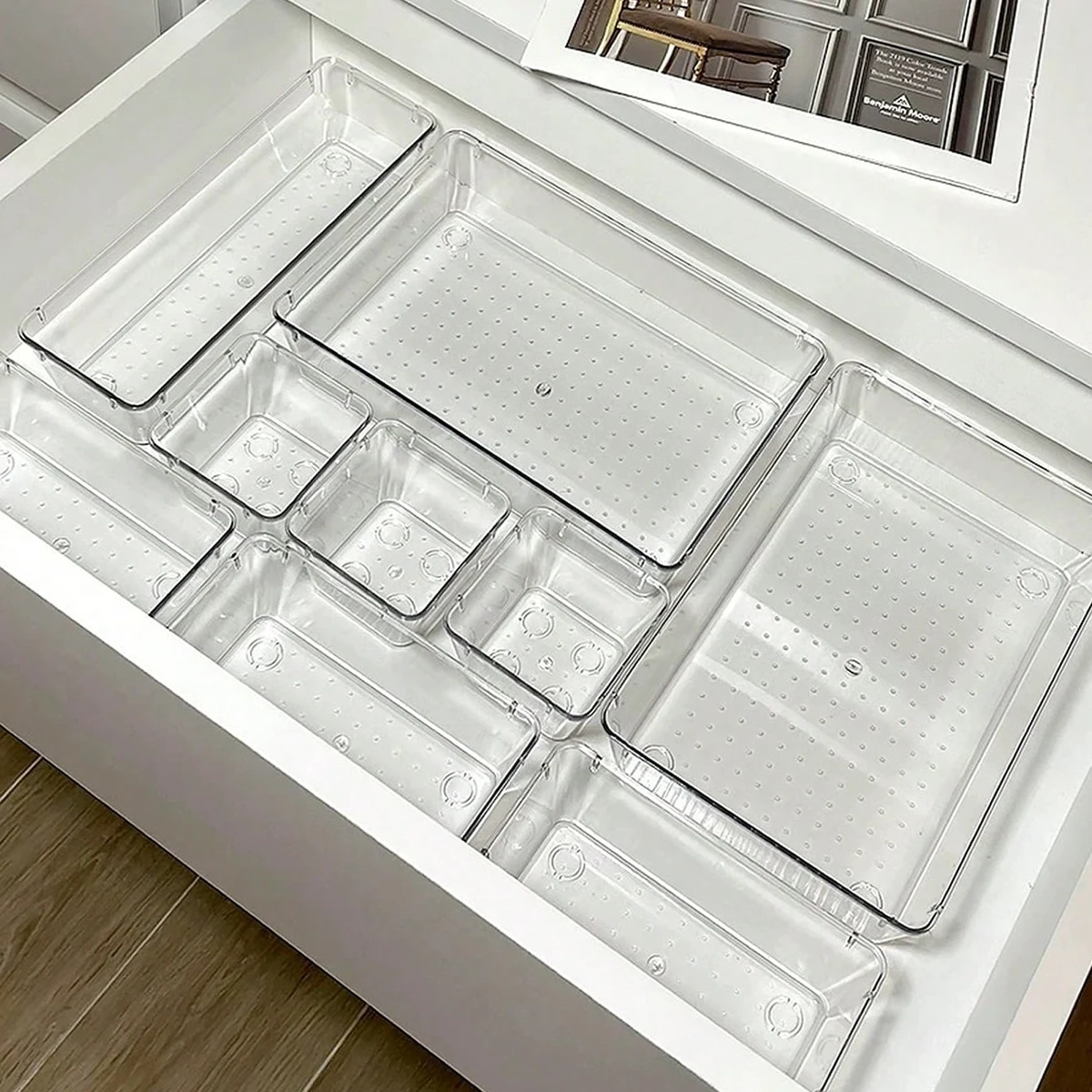
    7-piece drawer organizer set

    Remote meetings and computer-only work

    If your job is almost entirely on-screen — calls, documents, spreadsheets — your storage needs are genuinely small: a place for a notebook, a charger, and maybe a water bottle. Over-buying storage in this case usually just creates empty drawers that become junk collectors. A single small tray or a slim drawer unit is usually enough.

    Hybrid work with occasional paper

    If you deal with printed documents, mail, or the occasional physical file, you need at least one drawer with hanging file capacity or a document tray, even if you’re mostly paperless day to day. The mistake here is assuming “mostly digital” means “no storage needed” — the occasional physical item still needs a home, or it ends up as a stack on the desk surface.

    Creative and craft work

    Design, writing with physical references, hobby work, or anything involving tools and materials needs the most storage of any category — multiple drawer levels or a cart, ideally sorted by project or material type rather than one catch-all drawer. Open trays tend to fail here because craft supplies multiply quickly and clutter the desktop instead of staying contained.

    Under-desk drawer organizer in use

    Gaming and multi-device setups

    If your desk supports several devices — a PC, a console, peripherals, controllers — the priority shifts from paper storage to cable and accessory storage. A drawer for controllers and cables plus a stand or hooks for headsets usually covers this better than traditional document-focused organizers.

    The general rule

    Storage should match what physically accumulates on your desk in a normal week, not what a generic “complete desk setup” checklist suggests. Track what actually piles up on your desk surface for a week before buying anything — that pile is a more accurate shopping list than any general guide, including this one.

    Example pick: the same 7-piece drawer organizer set works well for most of the hybrid-work and creative-work categories above. (affiliate link)

    Organizer sorted by item type

    Bottom line

    Under-buying storage means clutter; over-buying means empty drawers and wasted desk footprint. Matching storage to your actual work type, rather than a one-size-fits-all setup, is what keeps a desk both functional and uncluttered long term.