Tag: home-office

  • Desk Ergonomics FAQ: Chair, Monitor Height, and Wrist Support Explained

    Desk Ergonomics FAQ: Chair, Monitor Height, and Wrist Support Explained

    This article includes affiliate links. We may earn a commission on qualifying purchases, at no additional cost to you.

    Desk ergonomics questions tend to repeat: how high the monitor should sit, whether a wrist rest actually helps, and whether a standing desk converter is worth the money. Here are direct answers to the ones we hear most often, without suggesting you need to replace your entire setup to fix them.

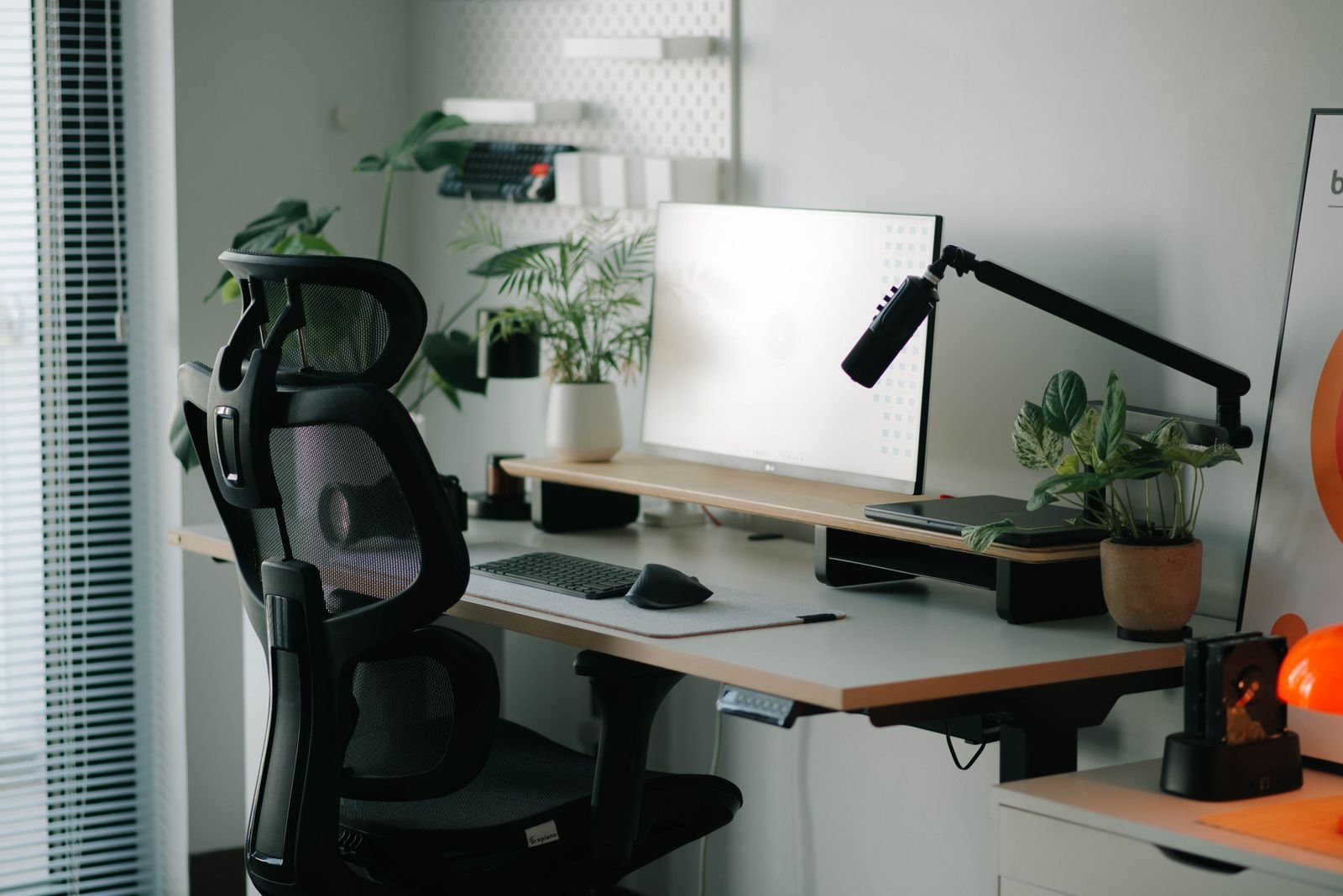
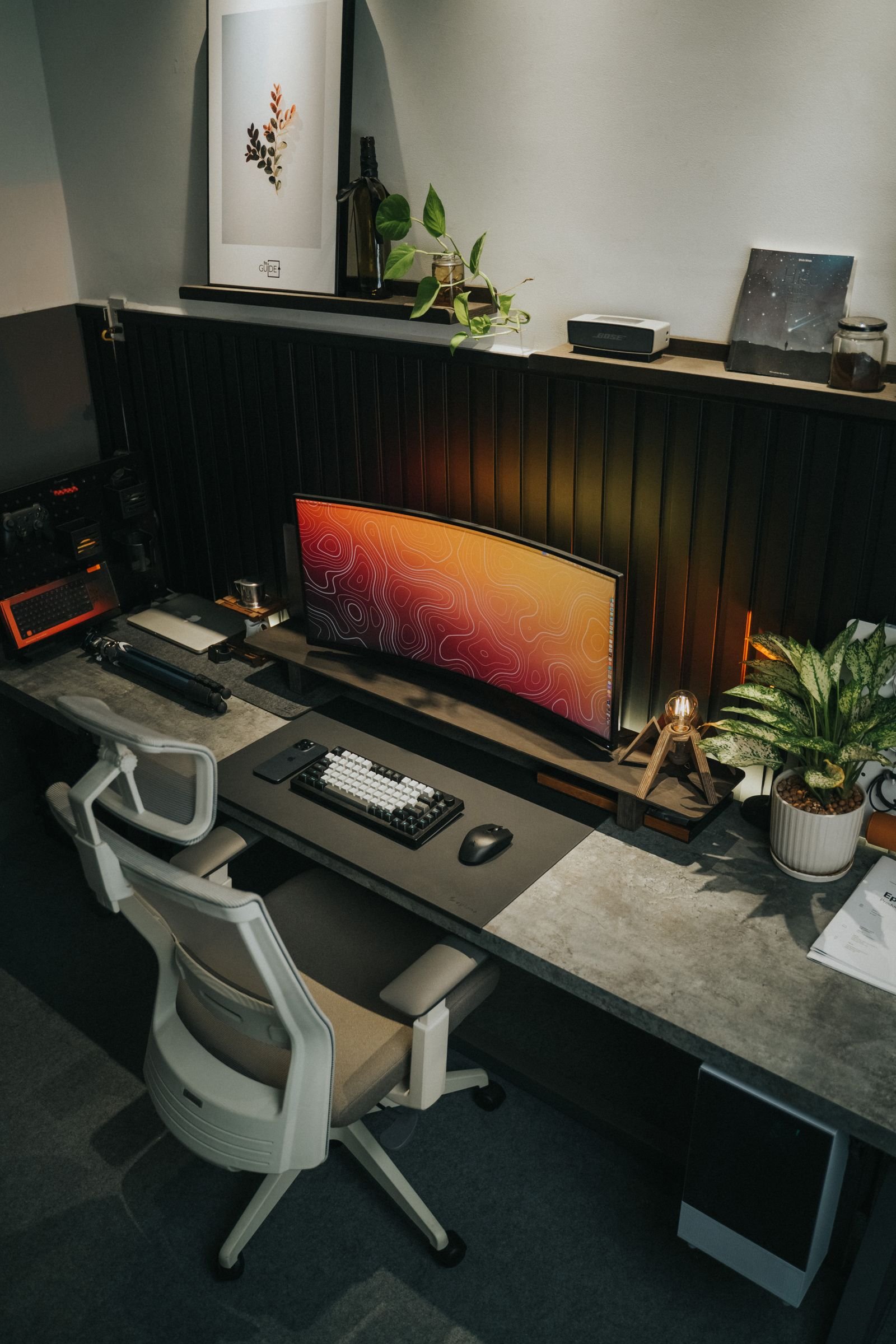
    Bright home office with ergonomic chair and monitor on an arm

    How high should my monitor actually be?

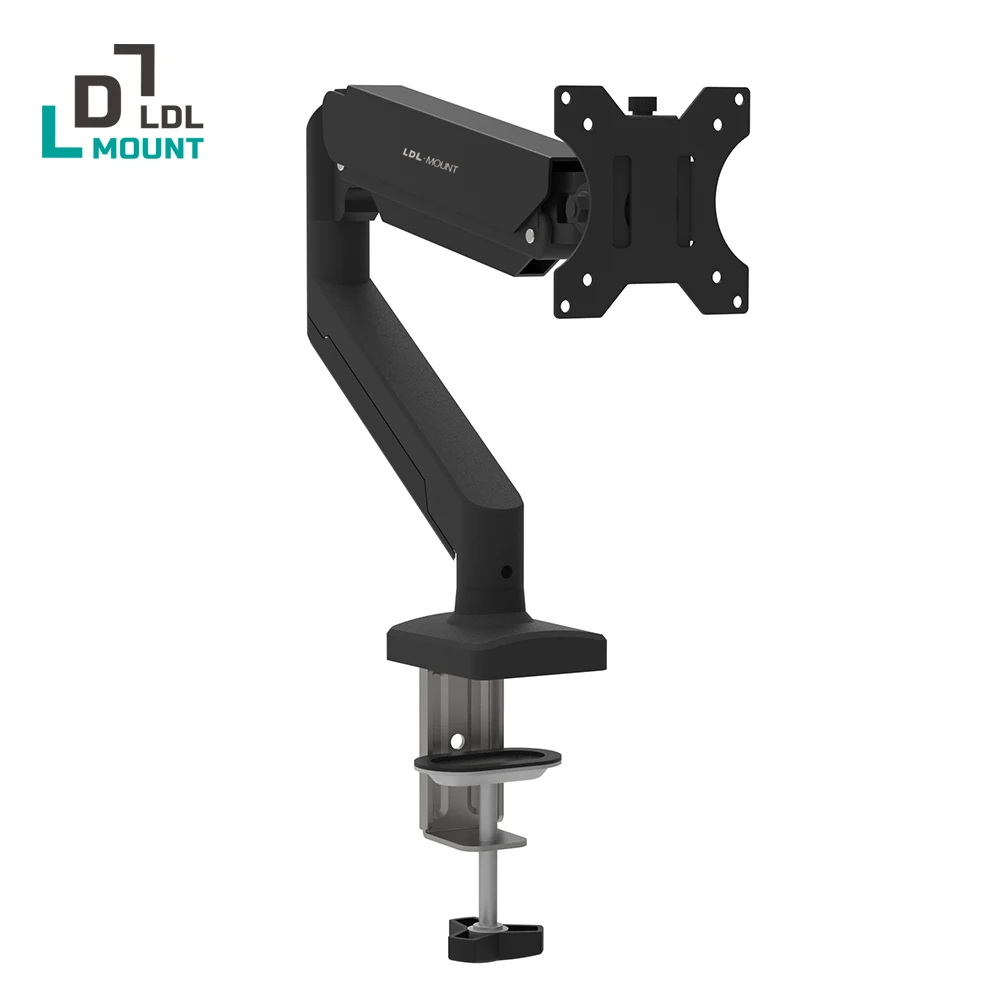
    As a starting point, the top of your screen should sit at or just below eye level, with the whole display about an arm’s length away. If you’re constantly tilting your neck down to read text, the monitor is too low; if you’re tipping your head back, it’s too high. A fixed stand often can’t hit the right height for every chair or desk combination, which is why an adjustable arm tends to solve this faster than stacking books under a monitor. We cover what to look for in our monitor arm buying guide. This single monitor arm (affiliate link) gives you enough height and tilt range to fix this without much setup time.

    Does a wrist rest actually help, or does it just move the problem?

    Used correctly, a wrist rest supports your wrists between keystrokes, not while you’re actively typing — resting your wrists on anything while typing tends to bend them upward, which is the opposite of what you want. The bigger fix is usually keyboard and desk height working together so your forearms stay roughly level. If wrist or hand discomfort is a recurring issue rather than an occasional one, it’s worth reading more in our guide to wrist pain at your desk.

    Is a standing desk converter worth it if I already have a regular desk?

    It depends on what you’re solving for. A converter won’t fix poor monitor height or a bad chair on its own, but it does let you break up long sitting stretches without buying a new desk. It’s a reasonable middle step if you want to try standing part of the day before committing to a full sit-stand desk. We walked through setup and budget options in how to set up a standing desk converter.

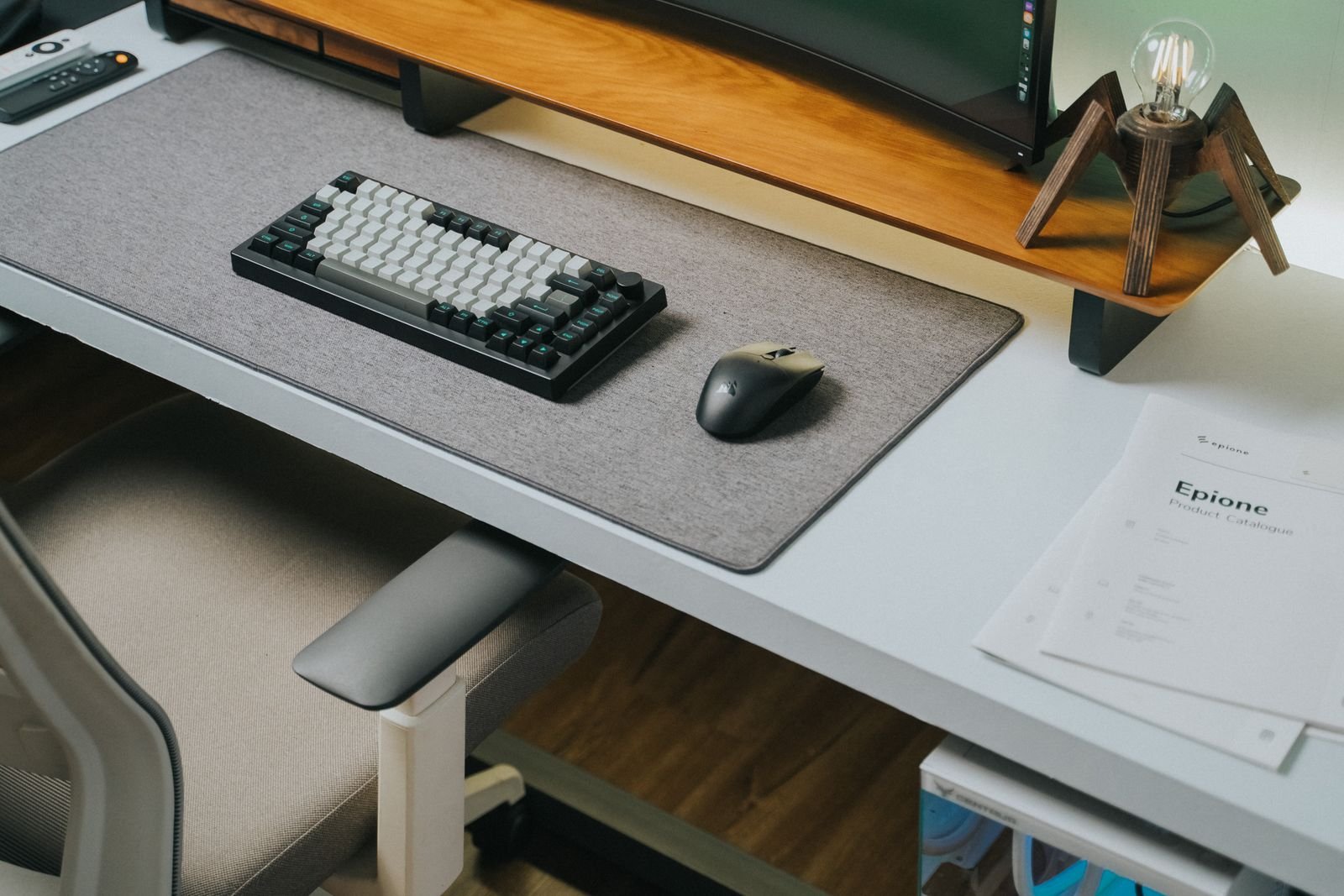
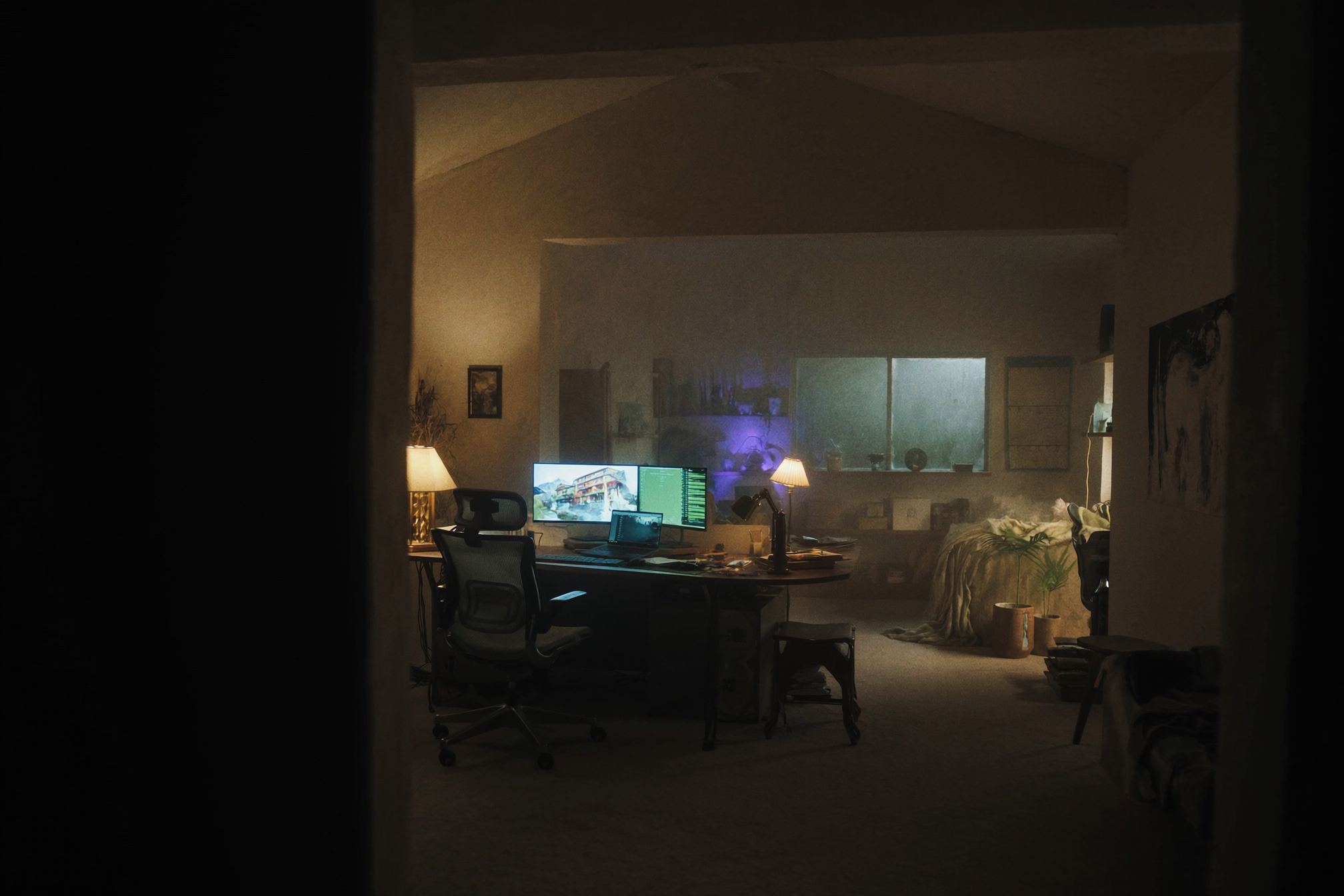
    Ergonomic office chair beside a desk with an adjustable monitor arm

    Does the desk surface itself make a difference?

    It can, mostly around wrist comfort and how much your mouse or keyboard shifts during the day. A mat with some cushioning and a non-slip base keeps your hands in a more consistent position than typing directly on a hard or slippery desktop. We compared surface options in how to pick a desk mat that doesn’t slide around. A large felt desk mat (affiliate link) is a low-cost way to test whether this actually helps before spending more.

    Do I need to fix everything at once?

    No — start with whatever’s causing actual discomfort right now, whether that’s your neck, wrists, or lower back, and address that one thing first. Most of these fixes are inexpensive and reversible, so there’s no need to overhaul the whole desk in one weekend.


  • Smart Desk Gadgets Checklist: What’s Actually Worth Adding to Your Setup

    Smart Desk Gadgets Checklist: What’s Actually Worth Adding to Your Setup

    This post contains affiliate links. If you buy through these links, we may earn a commission at no extra cost to you.

    “Smart desk gadgets” covers a lot of ground, from genuinely useful hubs to things that look nice in a flat-lay photo and then sit unused by week two. Before adding anything new to your setup, it helps to sort gadgets into three buckets: things you’ll reach for daily, things that solve a specific seasonal problem, and things you can safely skip. This checklist walks through what’s actually worth checking off first.

    Overhead view of a desk with smart gadgets including wireless earbuds and phone

    Start With What You Actually Plug In Every Day

    Before buying anything new, count how many devices compete for the same two or three ports on your laptop. If you’re constantly unplugging a mouse dongle to plug in a monitor cable, then swapping that for a phone charger, that’s the real problem — not a lack of gadgets, just too many trade-offs at one connection point. Once you know exactly what needs to stay connected at the same time, the rest of this list gets a lot easier to shop for.

    Checklist Item 1: A Hub That Matches Your Actual Ports

    A USB hub or docking station only helps if it covers the ports you use, not the ports a spec sheet lists. If you regularly connect an external monitor, a wired keyboard, and a phone at the same time, a single small dongle usually isn’t enough — you’ll want something with dedicated HDMI, multiple USB-A, and pass-through charging. We compared the two main options in more detail in our USB hub vs. docking station guide, including when the cheaper hub is genuinely enough. This 8-in-1 USB-C hub (affiliate link) is a reasonable starting point if you need HDMI output plus a few extra ports without committing to a full docking station.

    Checklist Item 2: Wireless Charging, With One Condition

    A wireless charging pad only earns its spot on the desk if your phone actually supports Qi charging without a case swap — otherwise it becomes a pad you keep meaning to use and don’t. If that condition is met, it’s a genuinely convenient upgrade: drop your phone down between calls instead of hunting for a cable. We go through the trade-offs, including charging speed and case compatibility, in our wireless charging pad breakdown. A basic foldable wireless charging stand (affiliate link) covers most desks without taking up much space.

    Checklist Item 3: Airflow for Warmer Months

    This one is seasonal rather than essential, but if your desk sits away from a window or air vent, a small USB-powered fan solves a real problem cheaply. It won’t replace air conditioning, but it makes a noticeable difference during a long afternoon of video calls. We covered a few low-cost airflow options, fans included, in how to keep your desk cool in summer.

    Smartwatch next to a laptop on a desk

    What Can Wait

    Not everything marketed as a “smart desk gadget” needs a spot on your setup right away. Decorative LED strips, novelty desk toys, and gadgets that duplicate something your phone already does well are easy to skip until the essentials above are actually in place. Start with the connection problem, then the seasonal one, and only add extras once you’ve used the setup long enough to know what’s actually missing.

  • Common Desk Setup Mistakes (and How to Fix Them)

    Common Desk Setup Mistakes (and How to Fix Them)

    Most desk setups aren’t wrong in one dramatic way — they’re wrong in a handful of small ways that add up to daily discomfort. Here are the ones that show up most often.

    Monitor height set by the stand, not your eyes

    The default height of whatever stand your monitor came with is rarely correct for your actual sitting height. The top of the screen should sit at or slightly below eye level; if you’re tilting your chin up or down to read it comfortably, the monitor is at the wrong height, not you.

    Keyboard and mouse too far from your body

    Desks that are deeper than they need to be often end up with the keyboard pushed toward the back edge, forcing your arms to reach forward for hours at a time. Pull the keyboard and mouse close enough that your elbows can stay near your sides — use the freed-up desk depth behind them for a monitor arm or storage instead.

    Cables treated as an afterthought

    Cable management usually gets addressed last, after everything else is already in place, which is exactly why it never quite gets fixed. Plan a cable path — usually down one leg to a single point — before you finalize where everything sits, not after.

    Lighting that fights your monitor instead of helping it

    A desk lamp aimed at the same spot your eyes are already focused on creates glare, not clarity. Light should fall on your keyboard and desk surface, not directly into your eyeline or onto the screen itself — and a window or overhead light directly behind your monitor will wash out the display no matter how good the lamp is.

  • How to Choose Between a Desk Mat and a Full Desk Pad

    How to Choose Between a Desk Mat and a Full Desk Pad

    This post contains affiliate links. If you buy through these links, we may earn a commission at no extra cost to you.

    Desk mats and full desk pads solve a similar problem at different scales, and picking the wrong size means either wasted money or a desk that still looks and feels unfinished.

    What a desk mat actually covers

    A desk mat typically covers the area directly in front of you — keyboard, mouse, maybe a wrist rest — leaving the rest of the desk surface exposed. It’s the cheaper, more common option, and it’s usually enough if your only complaint is mouse tracking or a keyboard sliding around.

    What a full desk pad changes

    A full desk pad covers the entire desktop edge to edge. It’s less about function and more about how the desk looks and feels as a whole — hiding scratches, unifying mismatched furniture, and giving the whole surface the same texture instead of a mat-sized island in the middle.

    Material matters more than size

    Whichever size you pick, felt and fabric-topped options feel warmer and quieter to type on, while vinyl or leather-look mats are easier to wipe clean but can feel slippery under a mechanical keyboard. A large wool felt desk mat with non-slip backing is a reasonable middle ground — soft enough to type on comfortably, with a backing that actually stays put. (affiliate link)

    Which one fits your setup

    If your desk already looks fine and you just want better tracking and a softer typing feel, get a mat sized for your keyboard and mouse. If your desk itself is scratched, mismatched, or just looks unfinished, a full pad solves that in one purchase instead of trying to fix the desk underneath it.

  • Best Desk Layouts for Small Home Offices

    Best Desk Layouts for Small Home Offices

    Small rooms make desk placement feel like a puzzle with no good answer. In practice, most small home offices work better with one of a few repeatable layouts rather than a custom one-off arrangement.

    The L-shape isn’t always the answer

    L-shaped desks get recommended constantly, but in a genuinely small room they often eat more floor space than they save, since you need clearance on two sides instead of one. They work best when a room is small but roughly square — in a narrow room, an L-shape frequently blocks a doorway or walking path instead of fitting into a corner.

    Corner setups reclaim floor space

    Angling a straight desk into a true corner, rather than pushing it flat against one wall, often frees up more usable floor than people expect. It keeps the desk out of the walking path through the room and can make a small space feel less like it’s dominated by furniture.

    Floating shelves over floor storage

    In a small room, floor-standing drawer units and bookshelves compound the space problem twice — once for the furniture itself, and again for the clearance needed to open it. Wall-mounted shelving above or beside the desk keeps storage accessible without taking a single inch of floor.

    Match the layout to how you actually work

    If you’re on video calls often, prioritize a layout with a plain wall or window behind you over one that’s technically more efficient. If you multitask across documents, prioritize desk width over depth. The “best” layout is the one that fits your actual work pattern, not the one that looks best in a photo.

  • How to Build a Cord-Free Desk Setup (Step by Step)

    How to Build a Cord-Free Desk Setup (Step by Step)

    This post contains affiliate links. If you buy through these links, we may earn a commission at no extra cost to you.

    A truly cord-free desk is mostly an illusion — power has to come from somewhere — but you can get close enough that nothing visible looks tangled or accidental. Here’s the order that actually works.

    Start with the cables you can eliminate entirely

    Before routing anything, cut what you can. Switch your mouse and keyboard to wireless (most decent ones now last months on a charge), and if your monitor supports it, move audio to Bluetooth speakers or a wireless headset instead of a wired connection. Every cable you remove is one you never have to hide.

    Handle what’s left with routing, not hiding

    You can’t eliminate power cables, so the goal shifts to routing them along a single, predictable path — usually down one desk leg — rather than letting them dangle across your field of view. A cable spine or clip system along the back edge of the desk keeps everything gathered before it drops.

    Where a wireless charger earns its keep

    Phone charging cables are an easy one to remove entirely. A foldable fast-charging wireless charging stand sits flat on the desk and removes one more cable from the pile without needing a dedicated spot for a cable to live. (affiliate link)

    The realistic finish line

    You’ll still have a monitor cable, a power brick, and probably a dock cable running somewhere. That’s fine — the goal isn’t zero cables, it’s zero cables you can see from your normal sitting position. Once the visible surface is clear, the setup reads as cord-free even though the cables are still doing their job out of sight.

  • Budget Desk Upgrade: $50 vs $150 vs $300 Setup Comparison

    Budget Desk Upgrade: $50 vs $150 vs $300 Setup Comparison

    Desk upgrade budgets scale differently than most people expect — the jump from $50 to $150 changes more than the jump from $150 to $300 does. Here’s roughly what each budget tier actually gets you.

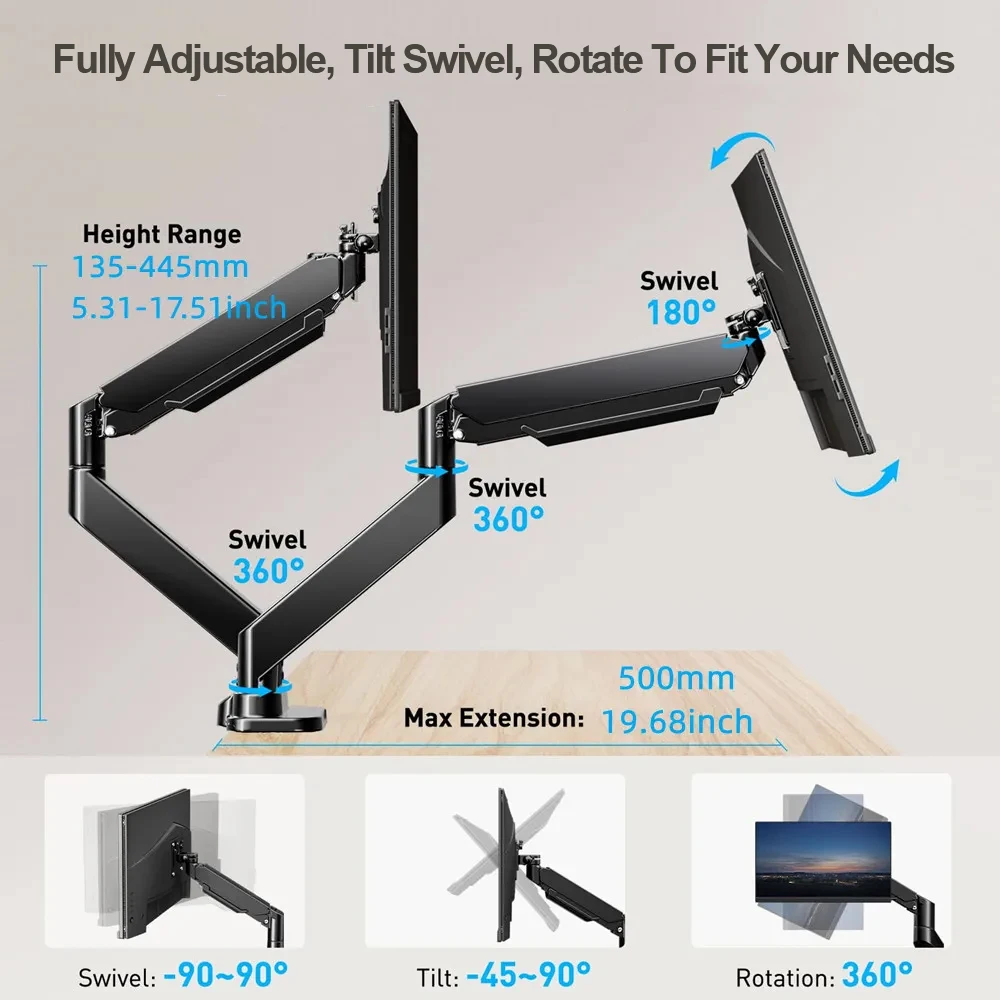
    Premium tier: fully adjustable dual monitor arm

    $50 tier: fix the worst problem, not everything

    At this budget, pick the single biggest pain point and solve just that. A basic monitor riser or a no-drill cable tray each cost well under $50 and meaningfully improve one specific issue — posture or cable clutter — without trying to overhaul the whole desk. Spreading $50 thin across five small items usually accomplishes less than solving one problem well.

    $150 tier: this is where real ergonomic gains start

    At $150, a single-arm monitor mount plus a decent adjustable desk lamp becomes realistic, and this tier is where most of the practical, daily-use ergonomic improvement actually happens — freeing desk space with a monitor arm and fixing eye strain with proper lighting solve two of the most common desk complaints directly. This tier delivers more noticeable day-to-day improvement per dollar than either tier above or below it.

    $300 tier: diminishing returns start, but comfort compounds

    At $300, a dual monitor arm, premium desk mat, and a proper cable management system are all in reach together. The improvement over the $150 tier is real but smaller in proportion — you’re refining an already-decent setup rather than fixing an obviously broken one, so the jump feels less dramatic even though the total comfort is higher.

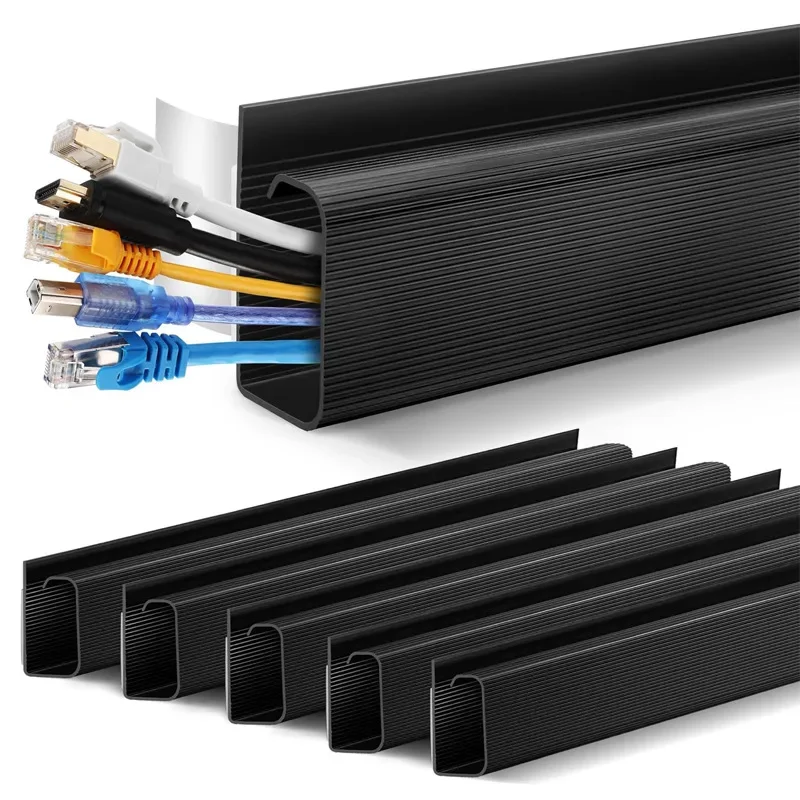
    Budget tier basic cable management

    Sequencing matters more than total budget

    Buying a premium desk mat before fixing a bad monitor height, for example, spends money on comfort while leaving the actual ergonomic problem untouched. Whatever your total budget, address monitor height and cable clutter first — they affect posture and daily frustration the most — before spending on refinements like premium surfaces or lighting aesthetics.

    Buying used or off-brand narrows the gap between tiers

    Monitor arms and desk accessories are one of the more forgiving categories for off-brand or sale purchases, since the core mechanism doesn’t vary as dramatically in quality as, say, electronics. Shopping sales within a category can effectively move a $150 result into a $50-$100 actual spend.

    Mid tier desk mat and keyboard setup

    Bottom line

    The $150 tier delivers the best ratio of visible improvement to money spent for most people, mainly because it’s the first tier that can address both monitor height and lighting together. Spend there first if budget is limited, and treat $300+ upgrades as refinement rather than necessity.

  • Gaming Desk vs Work Desk: Different Priorities, Different Gear

    Gaming Desk vs Work Desk: Different Priorities, Different Gear

    Gaming desks and work desks often use similar-looking furniture, but the actual priorities behind each setup are different enough that gear optimized for one is often the wrong choice for the other. Here’s where they genuinely diverge.

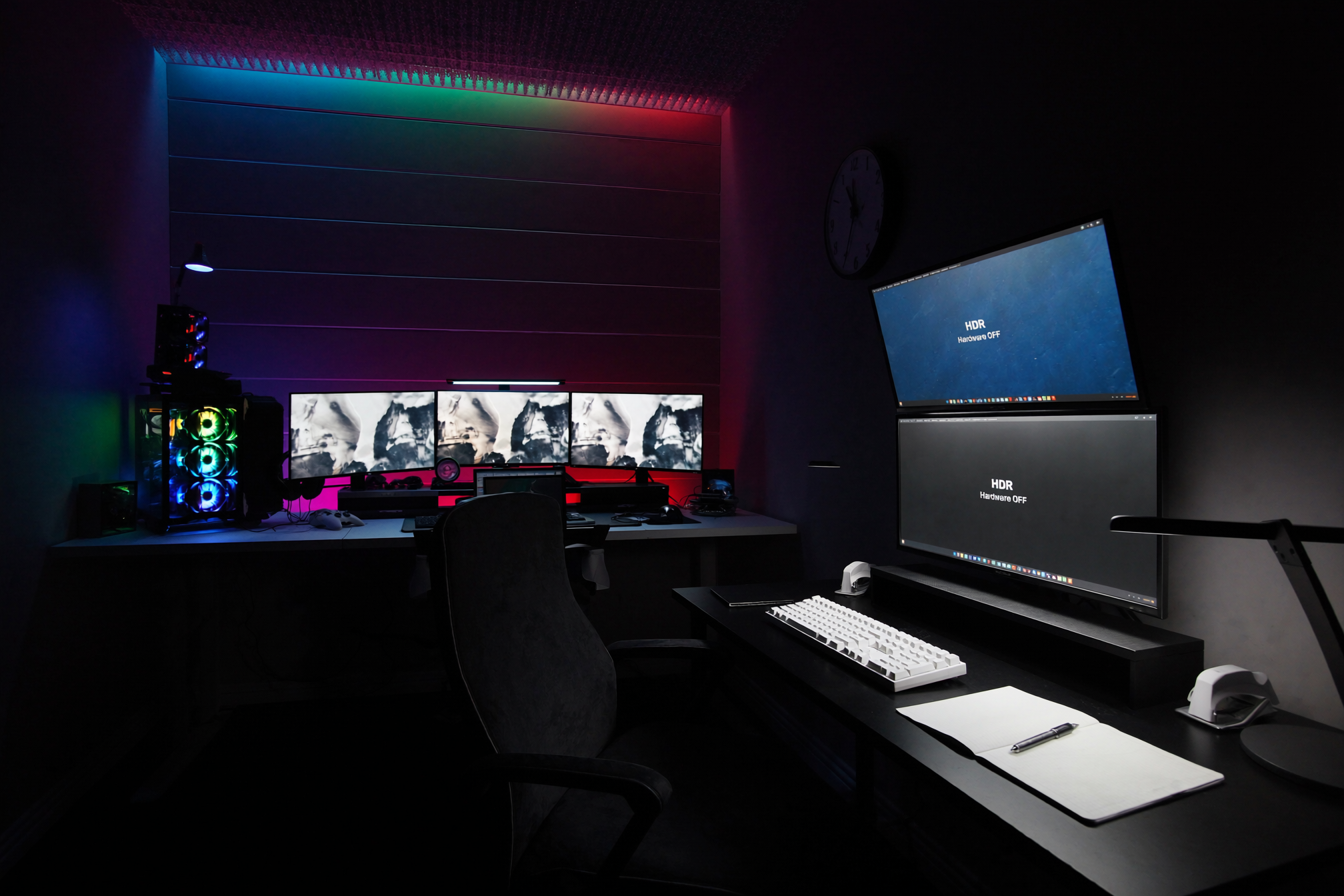
    Gaming desk setup next to a work desk setup

    Monitor priorities: refresh rate vs color accuracy and multitasking

    Gaming setups prioritize high refresh rate and low input lag above almost everything else, often on a single large or ultrawide display for immersion. Work setups tend to prioritize color accuracy, screen real estate for multitasking, and multiple monitors over raw refresh rate, since most office work doesn’t benefit from a 240Hz panel the way competitive gaming does.

    Desk surface size and depth needs differ

    Gaming desks often need extra depth to accommodate a mouse mat with room for wide sweeping motions, plus space for peripherals like a controller or headset stand. Work desks generally need width more than depth, to spread out multiple monitors or physical documents side by side.

    Lighting goals are almost opposite

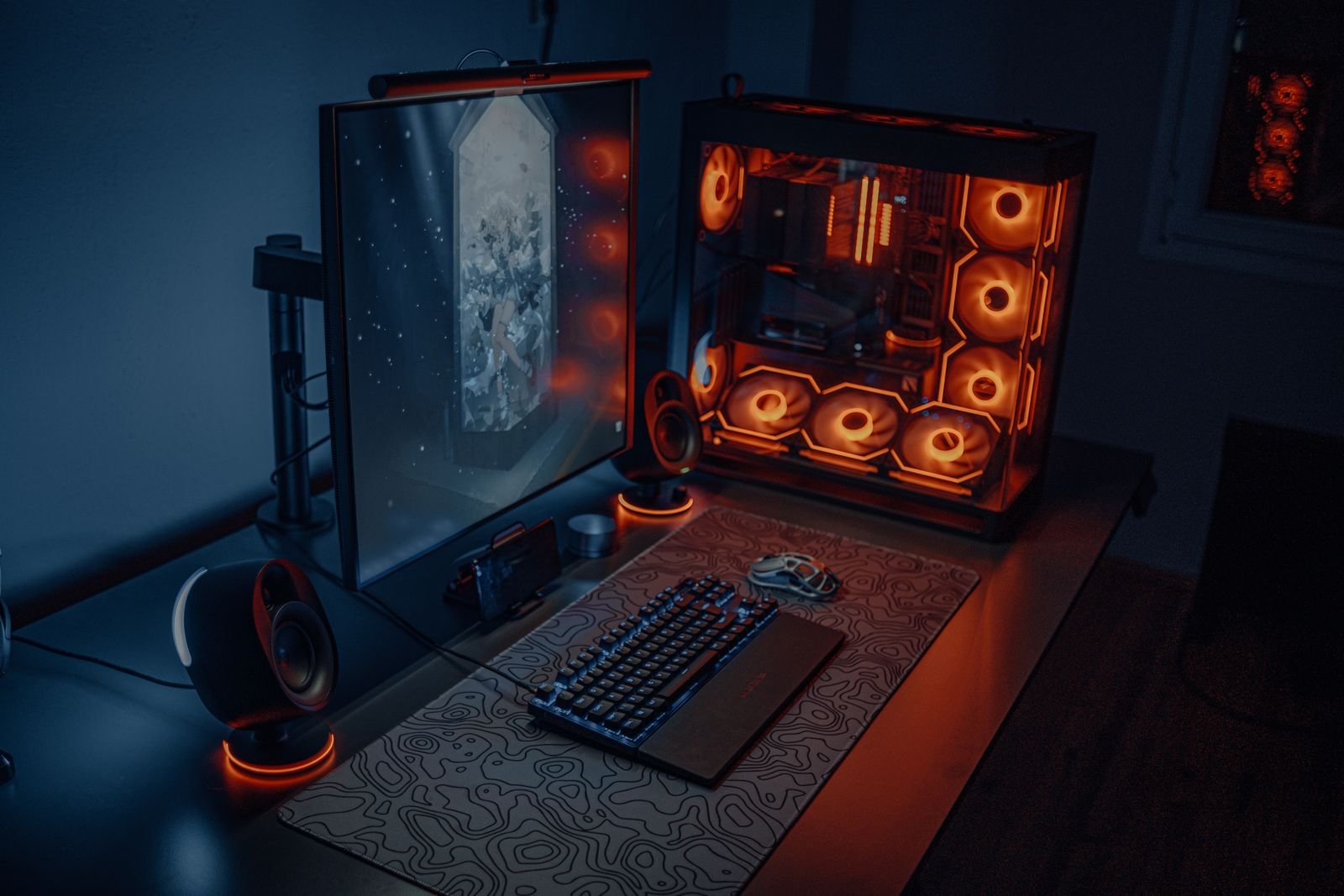
    Gaming setups often lean into RGB and ambient lighting as part of the aesthetic and atmosphere. Work setups need functional, glare-free, adjustable-temperature lighting focused on reducing eye strain during long focused sessions and looking presentable on video calls — decorative lighting is a lower priority than practical lighting.

    Adjustable monitor arm for gaming or work

    Chair and posture needs overlap more than people expect

    Both gaming and work setups benefit from a genuinely supportive chair for long sitting sessions, and this is one area where the same gear serves both purposes well — an ergonomic chair isn’t really “gaming” or “work” specific despite how it’s often marketed.

    Cable management priorities differ in visibility, not importance

    Gaming setups sometimes treat cable runs as part of the visual design, especially with RGB cable sleeves. Work setups more consistently aim to hide cables entirely for a clean, professional-looking background. Both benefit from actual cable management — the difference is whether the result is meant to be seen or disappear.

    Monitor arm mount detail

    Bottom line

    If your desk serves double duty, prioritize gear based on which use case is more time-sensitive to get right — refresh rate and immersion for gaming, or screen real estate and eye comfort for work — rather than trying to optimize equally for both at once.

  • Minimalist Desk Setup Ideas That Still Function Well

    Minimalist Desk Setup Ideas That Still Function Well

    A minimalist desk looks simple, but a setup that’s just “empty” instead of genuinely well-organized tends to fall apart within a few weeks as clutter creeps back. Here’s how to keep a desk minimal without sacrificing function.

    Minimalist desk setup with essential items only

    Minimalism starts with cable management, not fewer items

    Visible cables undermine a clean desk look more than almost anything else, even if the desk surface itself is nearly empty. Hiding cables with a tray or raceway does more for a minimalist look than removing items from the desktop.

    Hide storage instead of eliminating it

    True minimalism on a desk isn’t about owning less — it’s about keeping what you need out of sight until you need it. Under-desk drawers, closed organizers, and drawer inserts let you keep supplies accessible without them sitting visible on the desk surface.

    One or two accent items, not zero

    A completely bare desk often looks unfinished rather than intentional. A single plant, a simple desk mat in a neutral tone, or one piece of desk decor gives the eye something to land on without cluttering the space — the goal is restraint, not emptiness.

    Minimalist desk mat texture

    Match colors and materials across your gear

    A minimalist look breaks down quickly when your monitor arm, lamp, keyboard, and organizer are all different colors and finishes. Sticking to a simple palette — black and white, or matte neutrals — makes a desk with several functional items still read as clean and cohesive.

    Vertical storage keeps the desktop clear

    Moving items off the desk surface and onto a wall shelf or monitor riser with underneath storage preserves the open, minimal look of the desktop while still keeping supplies within reach — function and minimalism aren’t actually in conflict if storage just moves rather than disappears.

    Minimal drawer organization

    Bottom line

    A functional minimalist desk isn’t about owning fewer things — it’s about hiding cables, storing supplies out of sight, and keeping colors consistent. Handle those three, and a desk can look clean while still holding everything you actually need.

  • 2026 Home Office Trends: What’s Actually Changing

    2026 Home Office Trends: What’s Actually Changing

    Home office setups have settled since the early remote-work rush, and the trends worth paying attention to now are less about novelty and more about setups people are actually sticking with long-term. Here’s what’s genuinely shifting.

    Modern 2026 home office desk setup

    Multi-monitor setups are normalizing, not just for power users

    Dual and even triple monitor arms have moved from a “power user” purchase to a fairly standard home office upgrade, driven partly by falling prices on monitor arms and partly by more people permanently splitting communication tools from focused work across separate screens.

    Cable management has become a first-class concern, not an afterthought

    As people settle into permanent home setups rather than temporary ones, cable management products — trays, raceways, sleeves — have grown from a niche accessory into one of the most searched desk upgrade topics, simply because a “temporary” tangle of cables becomes genuinely annoying once it’s been sitting there for two years.

    Adjustable and hybrid furniture is replacing fixed setups

    Standing desk converters and adjustable monitor arms continue to grow because more people split their day between focused desk work and other tasks, and want furniture that adapts rather than committing to one fixed position all day.

    Modern USB C hub for multi-device setups

    Lighting is getting treated as workspace equipment, not decor

    Desk lamps with adjustable color temperature have shifted from a “nice to have” to something people actively research before buying, largely driven by more video calls and longer screen hours making people notice how much lighting affects both eye comfort and how they look on camera.

    Minimalism is winning over “gamer aesthetic” for home offices specifically

    While gaming setups still lean toward RGB lighting and visible cable runs as part of the aesthetic, home office setups are trending toward a cleaner, hidden-cable, neutral-color look, likely because that space also has to double as a presentable video-call background.

    Wireless charging as part of a smart desk

    Bottom line

    The common thread across these shifts is permanence: people are furnishing home offices like they’re staying, not like they’re waiting to go back to an office. That’s driving more spending on cable management, adjustability, and lighting than on purely decorative upgrades.