Author: empezz5@gmail.com

  • Cable Labels vs Cable Tags vs Heat Shrink: Which Labeling Method Works Best for Your Desk?

    Cable Labels vs Cable Tags vs Heat Shrink: Which Labeling Method Works Best for Your Desk?

    Heads up: some links in this post are affiliate links, which means we may earn a small commission if you make a purchase — at no extra cost to you.

    Once you’ve routed and bundled your desk cables, the next step is making sure you can actually identify them when you need to unplug, troubleshoot, or reorganize. Cable labeling seems like a small detail, but it becomes critical the moment you’re crouched under your desk trying to figure out which black power cable belongs to your monitor versus your docking station.

    Three popular methods dominate home-office cable labeling: adhesive cable labels, clip-on cable tags, and heat-shrink tubing. Each has different strengths depending on how permanent you need the label, how often you swap cables, and how clean you want the look. Here’s a side-by-side comparison to help you decide.

    Comparison Table: Cable Labels vs Cable Tags vs Heat Shrink

    Feature Adhesive Cable Labels Clip-On Cable Tags Heat-Shrink Tubing
    Installation Peel and stick to cable Clip or loop around cable Slide over connector, heat with gun or lighter
    Removability Moderate; may leave residue Fully reusable and repositionable Permanent; must be cut off
    Durability Fades or peels with frequent handling Very durable; won’t fade Extremely durable; won’t peel or fade
    Visibility Wraps around cable, visible from most angles Tag hangs off cable, easy to read Low profile; only visible where applied
    Best For Semi-permanent setups, quick labeling Frequently changing cables, rental setups Permanent installs, cables you rarely unplug
    Typical Cost $8–15 per roll or sheet $10–18 per pack (20–50 tags) $8–12 per kit (100+ pieces)

    What Each Method Does Best

    Adhesive cable labels are the quickest solution. You write or print on them, wrap them around the cable, and you’re done. Based on customer feedback, they work well for static home-office setups where you’re not constantly swapping gear. The downside is that cheaper labels can fade or peel after a few months, especially on cables that move frequently or get warm.

    Clip-on cable tags are ideal if you’re still experimenting with your setup or plan to move soon. Because they loop or snap onto cables without adhesive, you can reposition or reuse them indefinitely. They’re popular among users who swap monitors, rearrange desks seasonally, or work in shared spaces. The trade-off is that they’re slightly bulkier and can snag on cable management channels if not positioned carefully.

    Heat-shrink tubing offers the cleanest, most permanent solution. Once heated, it bonds tightly to the cable and won’t budge. Based on published specs and buyer reviews, this method is best for cables you install once and rarely touch—like power cables behind a desk or Ethernet runs. You can write on heat shrink with permanent marker or buy pre-printed kits. The downside is that removal requires cutting, so it’s not practical for frequently reconfigured setups.

    Which One Should You Choose?

    If you’re setting up a long-term home office and want a professional, low-maintenance result, heat-shrink tubing is the strongest choice. If you’re new to remote work, still tweaking your layout, or moving in the next year, clip-on tags offer maximum flexibility. Adhesive labels sit in the middle—good enough for most static setups, but expect to replace them eventually.

    For a tidy installation, pair your chosen labeling method with an under-desk cable tray (affiliate link) to keep labeled cables grouped and accessible without cluttering your workspace.

  • LED vs Halogen vs Incandescent Desk Lamps: Which Light Source Is Best for Your Home Office?

    LED vs Halogen vs Incandescent Desk Lamps: Which Light Source Is Best for Your Home Office?

    This post contains affiliate links. If you buy through these links, we may earn a commission at no extra cost to you.

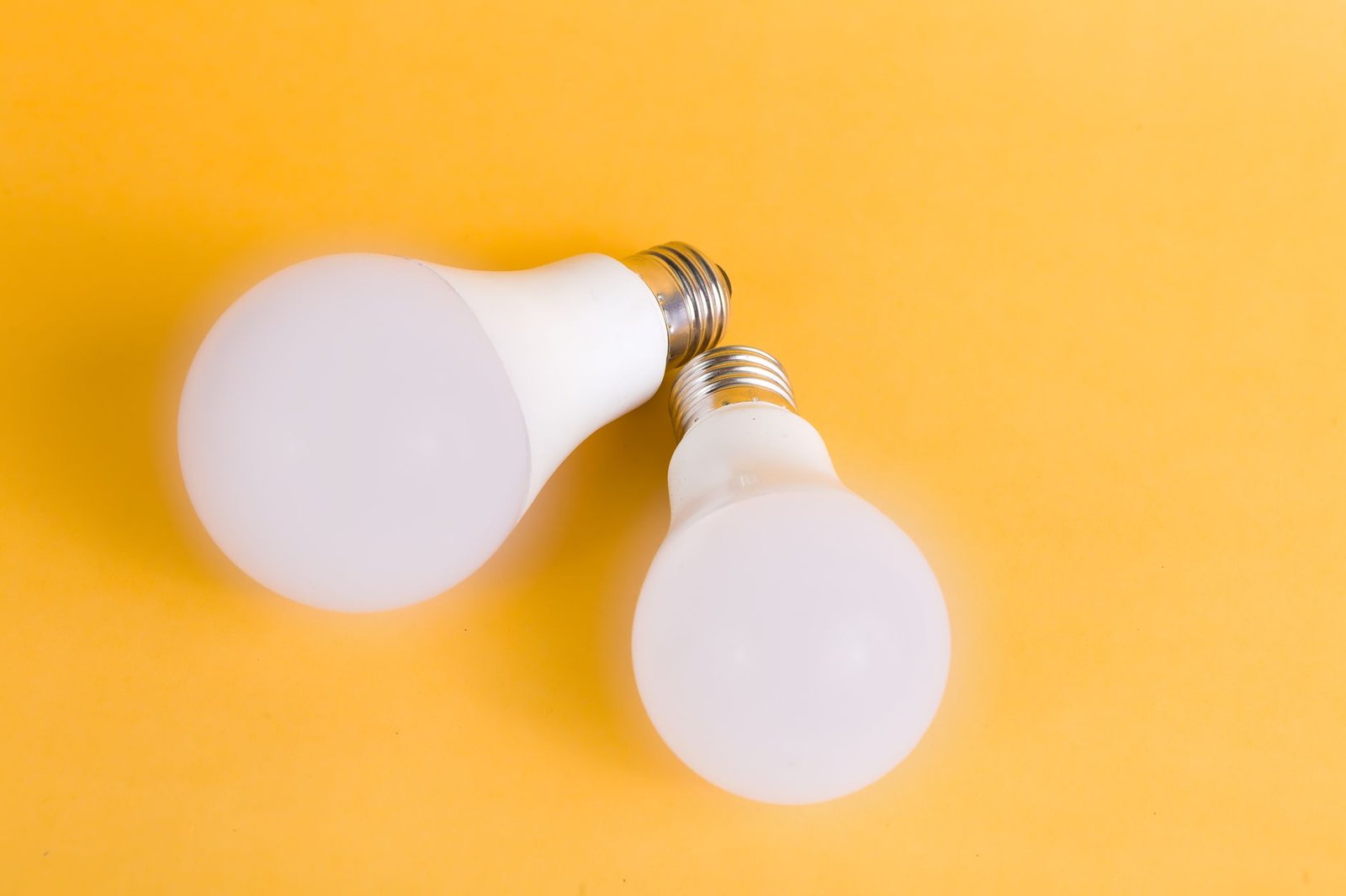
    When you’re shopping for a desk lamp, the bulb type isn’t just about energy bills—it affects brightness quality, heat output, lifespan, and how comfortable your eyes feel after eight hours of work. LED, halogen, and incandescent lamps each deliver light differently, and understanding those differences helps you pick the right fixture for your workspace.

    LED Desk Lamps: Efficiency and Control

    LED lamps dominate the home-office market for good reason. Based on published specs and buyer feedback, they typically consume 80–90% less energy than incandescent bulbs while lasting 25,000–50,000 hours. That translates to years of daily use without a bulb swap.

    LEDs also run cool to the touch, which matters in small spaces or summer months. Many LED desk lamps include dimming and color-temperature controls, letting you shift from warm 2700K light in the evening to cool 5000K during focus work. If you want flexibility and low operating cost, an LED desk lamp with adjustable brightness and color temperature (affiliate link) checks both boxes.

    The downsides: cheaper LED models sometimes flicker at lower brightness levels, and color rendering can feel harsh if the CRI (color rendering index) is below 80. Stick with lamps rated CRI 85 or higher for accurate color on documents and screens.

    Halogen Desk Lamps: Bright, Focused Light

    Halogen bulbs produce bright, white light that closely mimics natural daylight. They’re often found in architect-style task lamps where concentrated, high-output illumination is the priority. Based on specs, halogen lamps deliver excellent color rendering (CRI near 100) and instant full brightness with no warm-up time.

    The trade-offs are notable. Halogen bulbs generate significant heat—enough to make the lamp head uncomfortable to touch and raise the temperature around your desk. They also consume more electricity than LEDs and burn out faster, typically lasting 2,000–4,000 hours. If you need surgical-level task lighting for detailed drafting or inspection work, halogen makes sense. For general office tasks, the heat and power draw are harder to justify.

    Incandescent Desk Lamps: Warm Light, High Cost

    Traditional incandescent bulbs deliver warm, familiar light with a color temperature around 2700K and perfect color rendering. The glow feels cozy, which some users prefer for evening work or reading.

    But incandescent technology is inefficient: roughly 90% of the energy goes to heat, not light. Bulbs last only 750–1,200 hours, meaning frequent replacements. Operating cost is the highest of the three, and many countries have phased out or restricted incandescent sales due to energy-efficiency standards. Unless you already own a vintage lamp and prefer its aesthetic, incandescent is the least practical choice for a home office in 2025.

    Which Bulb Type Fits Your Workflow?

    LED is the default recommendation for most home-office setups—it balances energy efficiency, lifespan, and feature flexibility. If you’ve already mapped out your brightness and placement strategy, an LED lamp will deliver the range you need without driving up your power bill.

    Halogen works for specialized tasks requiring maximum brightness and color accuracy, but the heat and energy cost make it a niche pick. Incandescent suits vintage aesthetics or low-use accent lighting, not daily desk work.

    Bottom Line

    Choose LED for versatility, low running cost, and long-term reliability. Pick halogen if you need intense, daylight-quality task lighting and can tolerate the heat. Skip incandescent unless you’re committed to a specific lamp style and accept the ongoing bulb replacements. The right bulb type improves comfort and focus—just match it to how you actually work, not nostalgia or habit.

  • How Much Weight Can a Monitor Arm VESA Mount Actually Hold?

    How Much Weight Can a Monitor Arm VESA Mount Actually Hold?

    This article includes affiliate links. We may earn a commission on qualifying purchases, at no additional cost to you.

    VESA mounts are the standardized screw-hole patterns on the back of monitors that let you attach them to arms, stands, and wall brackets. But just because a monitor has VESA holes doesn’t mean any arm can hold it safely. Understanding VESA weight ratings—and how they interact with your monitor arm’s capacity—can prevent expensive accidents and ensure your setup stays secure.

    This FAQ breaks down the most common questions about VESA mount weight limits, compatibility, and safe installation practices for monitor arms.

    What do VESA weight ratings actually mean?

    VESA (Video Electronics Standards Association) defines mounting patterns—75×75mm, 100×100mm, and so on—but the organization doesn’t certify weight limits. The weight capacity you see advertised comes from the monitor arm manufacturer, not the VESA standard itself. A monitor arm rated for 20 pounds means the gas spring, joints, and hardware can safely support that load when properly installed.

    Your monitor’s weight should fall comfortably within the arm’s stated range. Going right up to the maximum often results in sagging over time, even if it doesn’t fail outright. Based on published specifications and customer feedback, keeping your monitor at least 2-3 pounds below the arm’s upper limit provides better long-term performance and smoother adjustment.

    Can I use a 100×100 VESA arm with a heavier 200×200 monitor?

    VESA pattern size and weight capacity are separate considerations. A 100×100mm pattern just means four screw holes spaced 100mm apart horizontally and vertically. A monitor with that pattern could weigh 8 pounds or 18 pounds—the pattern doesn’t tell you the weight. Similarly, a 200×200mm monitor isn’t necessarily heavier; it’s just physically larger and needs wider spacing for structural balance.

    Most monitor arms support multiple VESA patterns (75×75, 100×100, sometimes 200×200) through adjustable adapter plates. What matters is whether the arm’s weight capacity matches your monitor’s actual weight, regardless of the screw pattern. Always check both the VESA compatibility and the weight range before purchasing. If you’re managing cables alongside your arm installation, hiding cords properly keeps your setup looking clean and professional.

    What happens if I exceed the weight limit slightly?

    Exceeding a monitor arm’s weight capacity—even by a few pounds—typically causes gradual sagging rather than sudden collapse. Gas springs lose their lift force, tension knobs stop holding position, and you’ll find your monitor drifting downward throughout the day. In more extreme cases, the desk clamp can loosen, screws can strip, or joints can crack under sustained stress.

    Based on customer feedback, arms that are overloaded often require constant re-tightening and never quite hold position reliably. If your monitor weighs more than the arm’s rating, it’s worth investing in a higher-capacity model rather than fighting with an inadequate one. We’ve covered how monitor arms can damage desks if improperly installed or overloaded, so matching capacity to weight protects both your monitor and your furniture.

    Do single and dual monitor arms have different weight rules?

    Yes. A dual monitor arm (affiliate link) typically lists weight capacity per arm, not total. If each arm supports up to 17.6 pounds, you can mount two monitors as long as neither exceeds that individual limit—the total combined weight could be 35 pounds, but each monitor must stay within its own arm’s range.

    Balance also matters. Mounting one heavy monitor and one lightweight one on a dual arm can create uneven tension and stress on the center post. For the smoothest operation, try to keep both monitors within a few pounds of each other. Single arms are simpler: one weight limit, one monitor, no balancing required.

    Should I weigh my monitor before buying an arm?

    Absolutely. Manufacturer spec sheets often list monitor weight, but not all do—and the listed weight sometimes excludes the stand. Use a bathroom scale or kitchen scale to confirm your monitor’s actual weight, including any attached cables or accessories you plan to leave connected. Add a small margin for safety.

    If you’re upgrading to a monitor arm as part of a larger desk refresh, consider whether other accessories might streamline your workspace at the same time. A well-chosen arm frees up desk real estate, but only if you pick one with the right capacity for your specific monitor.

  • Pegboard vs Wall-Mounted Shelves vs Magnetic Strips: Desk Wall Storage Compared

    Pegboard vs Wall-Mounted Shelves vs Magnetic Strips: Desk Wall Storage Compared

    When your desk surface is maxed out and drawer space isn’t cutting it, the wall above your desk becomes prime real estate. Three popular wall-mounted storage approaches—pegboard systems, floating shelves, and magnetic strips—each solve different problems for home office workers. Here’s how to decide which setup makes the most sense for your workspace.

    Pegboard Storage Systems

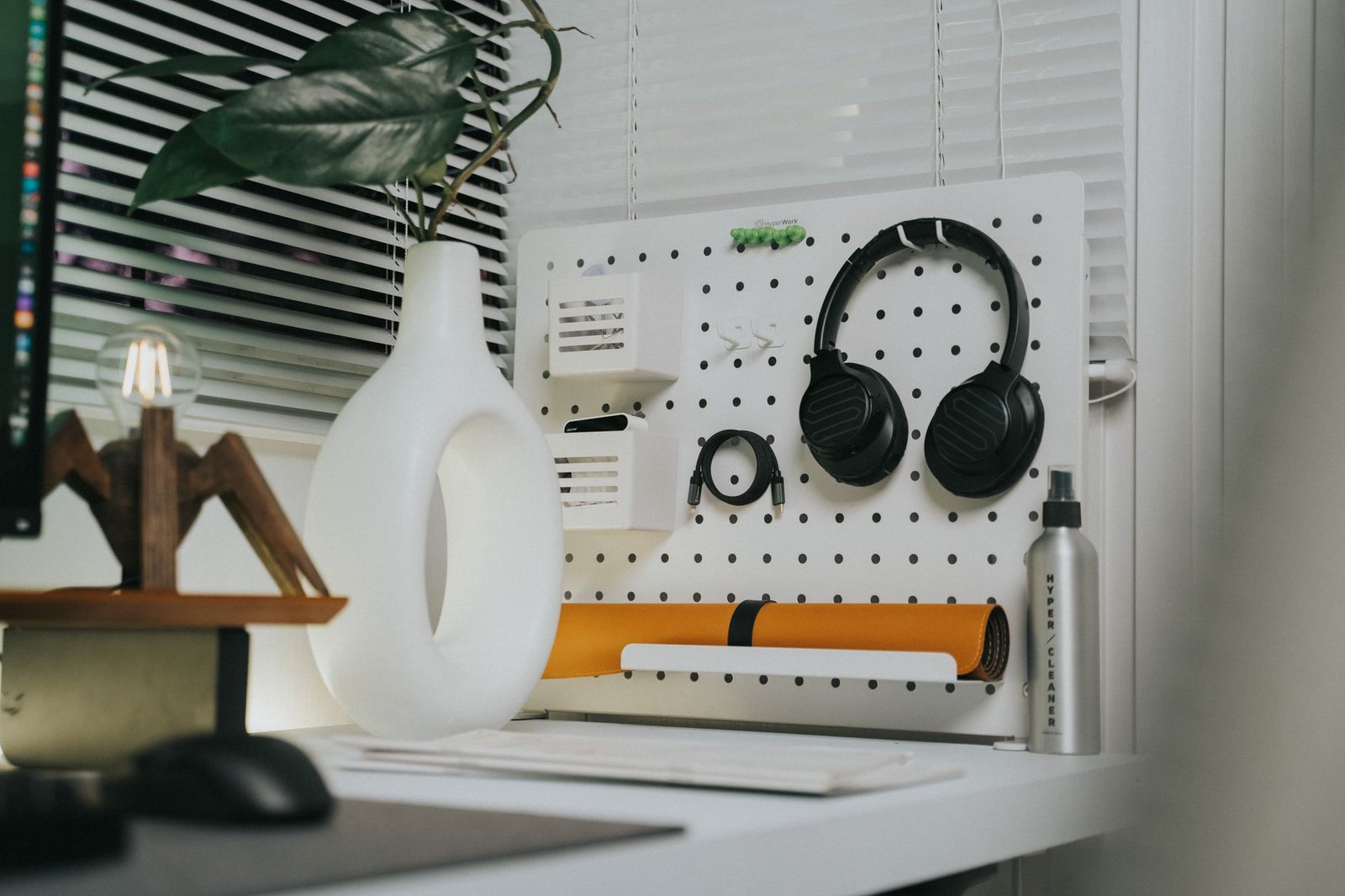
    Pegboard setups offer the most flexibility for changing layouts. You can reposition hooks, bins, and accessories without creating new holes in your wall, which matters if you’re renting or still experimenting with your desk arrangement.

    • Best for: Frequently accessed small tools, office supplies, headphones, and items you swap in and out regularly
    • Installation footprint: Requires mounting the full board once; accessories then clip in and out without additional wall damage
    • Weight capacity: Individual pegs typically hold 5–10 pounds depending on material; metal pegboard handles heavier loads than particleboard versions
    • Visual impact: Can look busy if overloaded; works best when you embrace the visible-storage aesthetic rather than fight it
    • Typical depth: Extends 3–6 inches from wall once accessories are added

    Based on published specs and customer feedback, pegboard works well for people who need quick access to varied tools—think designers switching between tablets, styluses, and adapters, or anyone who wants their desk surface completely clear.

    Wall-Mounted Floating Shelves

    Shelves give you horizontal surface area for items that don’t hang well or need to sit flat. They integrate more traditionally into home décor than pegboard.

    • Best for: Books, plant pots, desktop organizers, framed photos, backup monitors or tablets you use occasionally
    • Installation footprint: Each shelf requires separate mounting; repositioning means new holes
    • Weight capacity: Varies widely—lightweight decorative shelves hold 10–15 pounds, while heavy-duty brackets can support 50+ pounds when anchored to studs
    • Visual impact: Cleaner, more traditional look; easier to style in a way that doesn’t scream “office”
    • Typical depth: 6–12 inches; deeper shelves hold more but can make a small room feel cramped

    Shelves make the most sense when your storage needs are stable and you value a polished appearance. They’re also the go-to if you’re storing heavier reference materials or want to double the shelf as display space.

    Magnetic Wall Strips

    Magnetic strips work for metal office supplies and lightweight tools. They’re the most minimal option visually but also the most limited in scope.

    • Best for: Scissors, metal rulers, keys, small knives (for unboxing), magnetic cable organizers, paper clips in small tins
    • Installation footprint: Adhesive-backed strips install without screws; screw-mount versions offer stronger hold
    • Weight capacity: Most strips hold 2–5 pounds total; individual items should weigh ounces, not pounds
    • Visual impact: Nearly invisible when empty; items appear to float against the wall
    • Typical depth: Under 1 inch including mounted items

    Magnetic strips excel in compact spaces where every inch of desk depth matters. They won’t solve big storage problems, but they’re excellent for keeping a few essential tools within arm’s reach without visual clutter.

    Combination Approaches

    Many effective setups use two or even all three systems. A common arrangement: one floating shelf for a backup monitor or reference books, pegboard below for daily tools, and a magnetic strip near the top corner for scissors and spare charging cables.

    • Layer by access frequency: Put daily-use items on pegboard or magnetic strips; less-frequent items on shelves
    • Match storage to item weight: Heavy items belong on shelves anchored to studs; lightweight tools can go anywhere
    • Consider your cable situation: If you’re managing wall-mounted chargers or power bricks, pegboard hooks or a dedicated shelf keep cords contained better than magnetic strips

    If you’re already managing cable organization under your desk, extending that system vertically with matching wall storage creates a cohesive look and keeps power accessible for wall-mounted devices.

    The Practical Choice

    Start with your actual inventory. List what you need off your desk surface, weigh or estimate each item, and note how often you grab it during a typical workday. Pegboard wins for variety and flexibility. Shelves win for capacity and conventional aesthetics. Magnetic strips win for minimalism and tight spaces. Most people benefit from combining at least two of the three.

  • Cable Management Channels: Adhesive vs Screw-Mount vs Magnetic Compared

    Cable Management Channels: Adhesive vs Screw-Mount vs Magnetic Compared

    This article includes affiliate links. We may earn a commission on qualifying purchases, at no additional cost to you.

    When you’re routing cables along your desk, wall, or baseboard, a cable management channel keeps them bundled and protected. But choosing between adhesive-backed, screw-mount, and magnetic channels depends on your surface type, rental restrictions, and how permanent you want the installation to be.

    Each mounting method has trade-offs in holding strength, ease of removal, and compatibility with different materials. Here’s a direct comparison to help you decide which channel type fits your setup.

    Quick Comparison Table

    Type Best For Installation Removal Weight Capacity Reusable
    Adhesive-Backed Smooth walls, desks, or baseboards where drilling isn’t allowed Peel-and-stick; no tools required Can leave residue or damage paint Low to moderate; varies by adhesive quality No
    Screw-Mount Permanent setups, wood/drywall surfaces, high cable load Requires drill or screwdriver; takes longer Leaves screw holes; requires patching if removed High; supports heavy bundles and tension Yes, if you keep hardware
    Magnetic Metal desks, file cabinets, or other ferrous surfaces Snap on instantly; no adhesive or screws Fully removable with no damage Moderate; depends on magnet strength and surface contact Yes

    How to Choose the Right Mounting Type

    Adhesive-Backed Channels

    Adhesive channels are the fastest option for renters or anyone who can’t drill into walls. They work well on painted drywall, smooth wood, glass, and metal, but performance depends heavily on surface prep and adhesive quality. Cheaper options may sag over time, especially if you’re bundling multiple thick cables.

    Before applying, clean the surface with isopropyl alcohol and let it dry completely. Most adhesive channels use 3M-style foam tape, which bonds stronger after 24–48 hours of curing. If you’re managing cables under your desk, adhesive channels can route power and data lines along the underside without visible hardware.

    The downside: removal can peel paint or leave sticky residue. Test a small section first if you’re worried about damage.

    Screw-Mount Channels

    Screw-mount channels offer the most secure hold and are ideal for permanent home offices or setups with heavy cable loads—think multiple monitor cables, power strips, and monitor arm power cords running along a wall.

    Installation takes more time and leaves permanent holes, but the trade-off is reliability. You won’t worry about channels peeling off in warm weather or losing grip over time. If you own your home or plan to stay put for a while, screw-mount is the most robust choice. Many screw-mount channels are also reusable—just unscrew them and take them with you when you move.

    Magnetic Channels

    Magnetic channels are the sweet spot for flexibility and zero damage. They’re perfect if you have a steel desk frame, metal filing cabinet, or any ferrous surface. Installation is instant, and you can reposition or remove them anytime without residue or holes.

    The catch: they only work on magnetic surfaces, and holding strength depends on how much surface area contacts the metal. Textured or powder-coated finishes can reduce grip. They’re excellent for temporary setups, hot desks, or anyone who rearranges their workspace frequently.

    Which One Should You Use?

    If you’re renting or need a no-damage solution for painted walls or smooth desks, go with adhesive-backed channels. If you own your space and want maximum security for a high-cable-count setup, choose screw-mount. And if you have a metal desk or cabinet and value flexibility, magnetic channels are the cleanest option.

    For most under-desk cable routing, an adhesive-backed under-desk cable tray (affiliate link) offers a good balance of ease and capacity without requiring tools or leaving holes.

  • Desk Lamp Brightness Guide: How Many Lumens Do You Actually Need?

    Desk Lamp Brightness Guide: How Many Lumens Do You Actually Need?

    This article includes affiliate links. We may earn a commission on qualifying purchases, at no additional cost to you.

    Choosing a desk lamp often focuses on style and adjustability, but brightness is what determines whether you’ll actually be able to work comfortably. Too dim and you’ll strain your eyes; too bright and you’ll deal with glare and headaches. Understanding lumens—the measurement of light output—helps you pick the right lamp for your specific tasks without guessing.

    What Are Lumens and Why They Matter for Desk Lighting

    Lumens measure the total amount of visible light a bulb or fixture produces. Unlike watts, which measure energy consumption, lumens tell you how much light you’re actually getting. A 60-watt incandescent bulb produces about 800 lumens, but an LED can deliver the same brightness using only 8-10 watts.

    For desk work, lumens determine whether you have enough light for reading, typing, or detailed tasks without creating harsh shadows or overly bright spots. Most desk lamps range from 200 to 1,200 lumens, and the right level depends on your work type and ambient lighting conditions.

    Recommended Lumen Ranges by Task Type

    General computer work and email typically requires 300-500 lumens. Your screen provides its own light, so you need enough ambient brightness to reduce contrast between the screen and your surroundings without overwhelming the display.

    Reading, writing, and paperwork benefit from 450-750 lumens directed at your work surface. This provides clear visibility for printed materials and handwritten notes without creating harsh reflections on glossy paper.

    Detailed tasks like drawing, crafting, or circuit work need 750-1,200 lumens. These activities demand high contrast and shadow-free illumination to see fine details clearly. If you regularly work with small components or precise measurements, aim for the higher end of this range.

    Adjustability Matters More Than Maximum Output

    A lamp with 1,000 lumens at full brightness isn’t useful if you can’t dim it for lighter tasks. Based on published specifications and customer feedback, dimmable lamps offer the most versatility because your lighting needs change throughout the day.

    Morning work sessions might need less brightness if you have natural window light, while evening tasks require more output. A rechargeable LED desk lamp with multiple brightness levels (affiliate link) lets you dial in the exact amount of light you need instead of settling for one fixed output.

    Look for lamps with at least three brightness levels or continuous dimming. This flexibility is especially valuable if you share your workspace with others or if your desk serves multiple purposes beyond work hours.

    How Room Lighting Affects Your Desk Lamp Requirements

    If you already have overhead lighting, you may need fewer lumens from your desk lamp. Layering your desk lighting means combining ambient room light with focused task lighting, so a 300-400 lumen desk lamp might be sufficient when paired with ceiling fixtures.

    Working in a room with no overhead fixture changes the equation. Your desk lamp becomes the primary light source, so you’ll want 600-900 lumens to adequately illuminate both your work surface and the surrounding area. The lamp needs to cover more territory without leaving dark zones that increase eye strain.

    Corner desks and windowless rooms also benefit from higher lumen counts because there’s less reflected light bouncing around the space. Dark wall colors absorb light rather than reflecting it, which means you need more initial output to achieve comfortable brightness levels.

    Beam Angle and Color Temperature Also Impact Perceived Brightness

    Two lamps with identical lumen ratings can feel very different depending on beam angle. A narrow spotlight concentrates lumens into a small, intense circle, while a wide diffused beam spreads the same lumens across a larger area with softer overall brightness.

    For general desk work, look for beam angles between 60-90 degrees. This provides focused light on your immediate work area without creating a spotlight effect. Wider angles work better if you need to illuminate a large desk surface or multiple zones.

    Color temperature also affects how bright a light feels. Cooler temperatures (5000K-6500K) tend to feel brighter and more energizing at the same lumen count compared to warmer tones (2700K-3000K). If you’re working late and want to reduce eye strain, consider a lamp that lets you adjust both brightness and color temperature independently.

  • Can You Adjust a Monitor Arm After Installation? (Movement, Tightness & Repositioning)

    Can You Adjust a Monitor Arm After Installation? (Movement, Tightness & Repositioning)

    This article includes affiliate links. We may earn a commission on qualifying purchases, at no additional cost to you.

    One of the biggest advantages of investing in a monitor arm is flexibility—but that flexibility only matters if you can actually adjust the arm when you need to. Whether you’re tweaking your screen height for better posture, repositioning your monitor for a video call, or simply trying to tighten a loose joint, understanding how monitor arms adjust after installation is crucial.

    The short answer: yes, virtually all monitor arms are designed to be adjusted after installation. But the ease of adjustment, the range of motion, and the tools required vary widely depending on the type of arm, the tension mechanism, and how well it’s maintained. Here’s what you need to know.

    Can you move the monitor freely once the arm is installed?

    Most monitor arms are designed for frequent repositioning. Gas-spring arms and friction-based arms both allow you to move the monitor up, down, forward, backward, and side-to-side without tools—assuming the tension is properly calibrated. You should be able to gently push or pull your monitor into a new position and have it stay there.

    If your monitor drifts downward or feels too stiff to move, the tension needs adjustment. Gas-spring models typically have a hex-key adjustment point (often on the arm’s vertical post), while friction arms use thumbscrews or Allen screws at the joints. Check your arm’s manual for the exact location and tool size—most use a 4mm, 5mm, or 6mm hex key.

    How do you tighten a monitor arm that’s sagging or drifting?

    Sagging is the most common issue with monitor arms, especially if your monitor is near the weight limit or the arm has been in use for a while. For gas-spring arms, locate the tension adjustment screw (usually marked with a “+” and “–” symbol) and turn it clockwise in small increments—quarter-turns at a time—until the monitor holds position without drifting.

    For friction-based arms, tighten the screws at each joint where movement occurs. Be careful not to overtighten, as this can strip threads or make the arm completely immovable. Test after each adjustment to find the sweet spot where the monitor moves smoothly but stays in place when released.

    Can you reposition the arm’s base or clamp after it’s mounted?

    Yes, but it requires partial disassembly. If you need to move the clamp to a different spot on your desk or switch from clamp to grommet mounting, you’ll need to loosen the base fasteners, reposition, and retighten. This usually means removing the monitor from the arm first to reduce weight and avoid stress on the joints.

    Keep in mind that moving the base may affect cable routing if you’ve already organized your wires. If you’ve invested in a tidy setup with cable sleeves or trays, you may need to redo part of that work after repositioning the arm.

    What if the arm won’t stay in position no matter how much you tighten it?

    If tightening the tension screws doesn’t solve the problem, your monitor may be too heavy for the arm’s capacity, or the internal mechanism may be worn out. Check the arm’s weight rating against your monitor’s actual weight (including the VESA mount bracket). If you’re over the limit, the arm will struggle to hold position reliably.

    In some cases, gas springs lose pressure over time, especially in budget models. If your arm is several years old and no longer holds tension even when fully tightened, it may be time to replace it. Based on customer feedback, most quality arms maintain their tension for 3–5 years under normal use, but cheaper models may degrade faster.

    Do you need to readjust monitor arms seasonally or over time?

    Generally, no—but minor tweaks aren’t uncommon. Temperature fluctuations can slightly affect gas pressure in spring-loaded arms, and regular use can cause joints to loosen. If you notice your monitor slowly creeping downward over weeks or months, a quick quarter-turn adjustment usually brings it back to normal.

    If you’re setting up a minimalist desk or frequently rearrange your workspace, consider a single monitor arm with easy-access tension controls (affiliate link) so you can make adjustments without digging out tools every time.

  • Desktop Power Strip Placement: Where to Mount It for Easy Access and Safety

    Desktop Power Strip Placement: Where to Mount It for Easy Access and Safety

    Your desktop power strip is one of the most important—and most overlooked—components of your desk setup. Place it wrong, and you’ll end up tangling cords, blocking outlets, or creating a safety hazard. Place it right, and you’ll have easy access to power without clutter or risk.

    This checklist walks you through every decision point for power strip placement, from desk type to cord management to fire safety. Use it whether you’re setting up a new workspace or troubleshooting an existing one.

    Where to Place Your Desktop Power Strip: Decision Checklist

    • Mount it to the underside of your desk if you have a solid desktop. This keeps the strip off the floor, prevents accidental unplugging, and makes outlets easy to reach without bending over. Use heavy-duty adhesive strips or screws depending on your desk material.
    • Choose the side of your desk with the shortest cable runs. If your monitor, laptop charger, and lamp are all on the right side, mount the strip on the right. Shorter cables mean less clutter and fewer opportunities for tangles.
    • Position it near the back edge, not the front. This keeps plugs and cables out of your primary work zone and prevents you from accidentally knocking cords loose when you lean forward or adjust your chair.
    • Keep it at least six inches from any ventilation or heat source. Power strips generate heat when loaded, and placing them near your computer’s exhaust fan or a space heater creates unnecessary fire risk.
    • Ensure the power button (if your strip has one) is reachable without unplugging everything. You want to be able to shut off power at the end of the day or during a storm without crawling under your desk.
    • If you use a standing desk, mount the strip on the frame—not the desktop. As the desk raises and lowers, a strip mounted to the moving surface can create tension on the main power cable. Mounting to the stationary frame prevents this.
    • Avoid mounting directly over carpet or fabric surfaces. Heat dissipation is critical. If your desk has an open bottom and sits on carpet, mount the strip so air can circulate around it, or use a mount that elevates it slightly.
    • Route the main power cable cleanly to the wall outlet. Use cable clips or an under-desk cable tray to keep the thick main cord from dangling. This also reduces trip hazards and visual clutter.
    • Leave at least one outlet open for future additions. You’ll eventually add a new gadget, and having a spare outlet prevents the frustration of unplugging and replugging devices.
    • If your desk has limited clearance underneath, use a slim-profile or vertical power strip. Standard horizontal strips can bump into crossbars or drawer slides. Vertical models or low-profile designs fit tighter spaces more easily.
    • For multi-desk setups or L-shaped desks, use two smaller strips instead of one long one. This reduces cable runs, gives you better control over which devices are powered from which zone, and simplifies troubleshooting.
    • Check the amp/watt rating before plugging in high-draw devices. If you’re powering a gaming PC, dual monitors, and a space heater from one strip, you risk tripping the breaker or overheating the strip. Spread high-draw devices across multiple outlets or circuits.
    • Secure all connected cables with cable management accessories to prevent strain on the outlets. Dangling cables can pull plugs loose over time or create tension that damages the strip’s internal connections.
    • If you have pets or small children, mount the strip out of reach and use outlet covers. Curious hands or paws can unplug critical devices or create shock hazards.
    • Replace your power strip every 3-5 years, or immediately if you see scorch marks, loose outlets, or a burning smell. Power strips wear out, and old ones are fire risks. Mark the install date on the strip with a permanent marker so you know when to swap it.

    One Final Check

    After mounting, plug everything in and test each outlet. Wiggle the plugs gently—if any feel loose, reposition the strip or replace it. A secure, well-placed power strip is the foundation of a safe, clutter-free desk setup.

  • Cable Management Tape: Velcro vs Double-Sided vs Gaffer Tape Compared

    Cable Management Tape: Velcro vs Double-Sided vs Gaffer Tape Compared

    This article includes affiliate links. We may earn a commission on qualifying purchases, at no additional cost to you.

    When you’re securing cables to your desk or wall, the type of tape you choose determines how easy it is to adjust your setup later—and whether you’ll leave sticky residue or damage behind. Velcro tape, double-sided adhesive tape, and gaffer tape all serve cable management purposes, but they work in fundamentally different ways.

    This comparison breaks down when each tape type makes sense for typical home-office cable routing.

    Quick Comparison: Three Cable Tape Options

    Feature Velcro Tape (Hook & Loop) Double-Sided Adhesive Tape Gaffer Tape
    Reusability Highly reusable; open and close hundreds of times Single-use; once removed, adhesive is spent Single-use; tears when removed
    Best For Bundling cables together, temporary runs, frequent changes Permanent cable routing along desk edges or walls Temporary floor runs, event setups, short-term fixes
    Residue Risk None (no adhesive on cable side) Moderate to high, depending on brand and surface Low to none (designed for clean removal)
    Holding Strength Moderate; depends on strap width High; bonds firmly to smooth surfaces Moderate; fabric backing provides grip but not permanent bond
    Typical Use Case Wrapping around cable bundles; attaching to under-desk trays Mounting cable clips or raceways to desk underside Taping cables across floors during moves or temporary WFH setups
    Approximate Cost $8–15 for a 15 ft roll $6–12 for a 16 ft roll (3M VHB or similar) $10–18 for a 60 yd roll

    What the Table Tells You

    Velcro tape is the go-to choice if you expect to add, remove, or reroute cables regularly. Based on customer feedback and published specs, hook-and-loop straps hold bundles securely without leaving adhesive on your cables, and you can peel them open anytime you need to swap a device or add a charger. This makes Velcro ideal for bundling loose desk cables or attaching groups of wires to the crossbar of a standing desk or monitor arm.

    Double-sided adhesive tape—especially heavy-duty versions like 3M VHB—works best when you need a permanent mount. If you’re installing a PVC cable raceway duct (affiliate link) along your desk edge or sticking cable clips to the back of your monitor, double-sided tape creates a strong bond on clean, smooth surfaces. The trade-off is that removal often requires heat or adhesive remover, and you may damage paint or finish.

    Gaffer tape sits in the middle: it’s designed for temporary applications where you need a strong hold without residue. Event crews use it to tape down cables on floors, and it’s handy during moves or short-term setups when you’re routing extension cords across a room. It tears easily by hand and peels off cleanly, but it’s not built for long-term attachment or repeated removal like Velcro.

    Which One Should You Use?

    For most permanent home-office setups, Velcro tape for bundling and double-sided tape for mounting hardware cover the majority of needs. Keep a small roll of gaffer tape on hand if you ever need to secure cables during rearrangements or temporary setups—it’s especially useful if you’re troubleshooting a new layout and don’t want to commit to adhesive mounts yet. Avoiding common desk setup mistakes often means choosing the right fastener the first time, so your cables stay tidy without constant re-work.

  • How to Light a Home Office With No Overhead Fixture (Your Options)

    How to Light a Home Office With No Overhead Fixture (Your Options)

    This post contains affiliate links. If you buy through these links, we may earn a commission at no extra cost to you.

    Not every home office comes with overhead lighting. Spare bedrooms, basement corners, and converted closets often lack ceiling fixtures entirely, leaving you with dim, uneven lighting that strains your eyes and saps your focus. The good news is that you don’t need an electrician or major renovation to build a well-lit workspace. With the right combination of freestanding, clipped, and task lighting, you can create bright, comfortable illumination from the ground up.

    Start With a Tall Floor Lamp for Ambient Light

    A tall floor lamp—ideally 60 to 72 inches high—provides broad, ambient light that mimics the coverage of a ceiling fixture. Position it behind or beside your desk so the light diffuses across the room without casting harsh shadows on your monitor. Look for models with adjustable heads or multi-bulb designs that spread light in multiple directions. Torchiere-style lamps that bounce light off the ceiling work especially well in rooms with white or light-colored ceilings, creating soft, indirect illumination similar to overhead fixtures.

    Add a Desk Lamp for Focused Task Lighting

    Ambient light alone won’t cut it for detail work, reading documents, or writing notes. A dedicated desk lamp gives you direct, adjustable light exactly where you need it. Based on published specifications and customer feedback, swing-arm or gooseneck models offer the most flexibility for positioning light without taking up valuable desk real estate. A rechargeable LED desk lamp (affiliate link) eliminates the need for outlets near your desk and can be repositioned easily. Pay attention to brightness levels—aim for at least 400 lumens for reading and computer work. If you’re unsure about what color temperature should your desk lighting be, neutral white (3500–4500K) balances focus and comfort for most tasks.

    Use Clip-On Lights for Shelves and Vertical Surfaces

    Clip-on lamps are underrated for offices without overhead lighting. Attach them to shelves, bookcases, or the edge of a monitor to add supplemental light from unexpected angles. They’re especially useful for illuminating dark corners, closet-office setups, or areas behind your monitor that a desk lamp can’t reach. Because they draw power from a USB port or battery, clip-on lights keep your cord count low and don’t require nearby outlets. Position them to point toward walls or ceilings for reflected light, or aim them downward for focused task lighting on secondary work surfaces.

    Layer Your Lighting to Avoid Dark Zones

    The secret to a well-lit office with no overhead fixture is layering. Combine ambient light (floor lamp), task light (desk lamp), and accent light (clip-on or wall-mounted fixtures) to eliminate shadows and create even coverage. Avoid relying on a single bright source, which creates harsh contrast and increases eye strain. Instead, distribute light around the room at different heights and angles. This approach not only improves visibility but also reduces eye strain by softening transitions between bright and dark areas.

    Power Your Setup Without Overloading Outlets

    Multiple lamps mean multiple plugs. If your room has limited outlets, invest in a quality surge-protected power strip with at least six outlets and USB ports for charging lamps or accessories. Route cords along baseboards or behind furniture to keep them out of sight and prevent tripping hazards. Battery-powered or rechargeable lamps reduce dependence on outlets and give you more flexibility in lamp placement, especially for clip-on or portable accent lights. Plan your power layout before you buy lamps—knowing where outlets are located will help you choose between plug-in and rechargeable models.