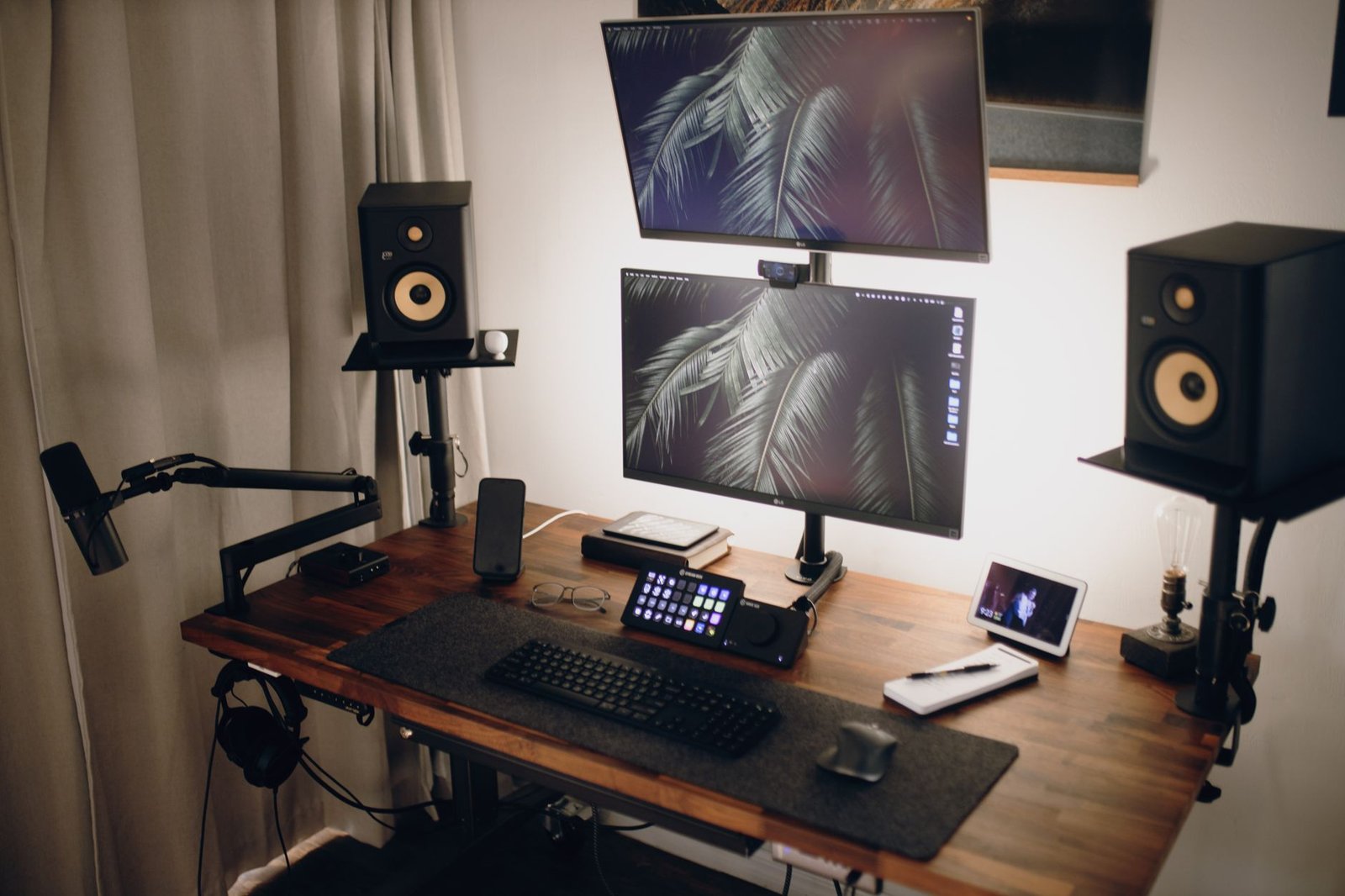
Heads up: some links in this post are affiliate links, which means we may earn a small commission if you make a purchase — at no extra cost to you.
Before you buy a monitor arm, you need to know whether it will actually work with your desk and monitor. Compatibility issues are the most common reason monitor arms get returned, and they’re almost always avoidable if you check a few key measurements first. This FAQ covers the most important compatibility questions so you can make a confident purchase.
Will a monitor arm work with my desk thickness?
Most monitor arms use a C-clamp that requires a desk thickness between 0.4 and 2.4 inches (roughly 10–60 mm). Measure the edge of your desk where you plan to mount the arm—not the entire desk surface if it has a hollow core or frame underneath. Glass desks, standing desks with thin tops, and some IKEA models fall outside this range and won’t work with standard clamps.
If your desk is too thick, a grommet mount (which goes through a drilled hole) may be your only option. If it’s too thin or has a lip that interferes, look for arms that include extension brackets or support spacers. Based on published specifications and customer feedback, arms with adjustable clamp ranges offer the best flexibility for non-standard desks.
How do I know if my monitor is compatible with VESA mounting?
Check the back of your monitor for four screw holes arranged in a square pattern. The two most common VESA patterns are 75 × 75 mm and 100 × 100 mm. If you see these holes, your monitor is compatible with nearly every monitor arm on the market.
Some ultrawide or gaming monitors use 200 × 200 mm patterns, which require heavier-duty arms. If there are no visible holes, consult your monitor’s manual or search “[monitor model] VESA compatible.” Apple Studio Displays, iMacs, and some all-in-one PCs do not support VESA without aftermarket adapters. Measure your monitor’s weight, too—most single arms support 4.4 to 19.8 lbs (2–9 kg), but confirm your monitor falls within the arm’s rated range.
Can I use a monitor arm with a standing desk?
Yes, but you need to account for the arm’s vertical range. When your desk rises, the monitor rises with it, so a short-travel arm may leave your screen too high when standing. Look for arms with at least 13–15 inches of vertical adjustment to accommodate sit-stand transitions without needing to reposition the arm itself.
Electric standing desks with cable-management trays can also interfere with arm clamps. Make sure there’s a clear, flat section of desk edge where the clamp can grip securely. If you’re planning a full cord-free desk setup, mounting a monitor arm early helps you route cables cleanly before adding other accessories.
What if my desk is against a wall or has limited depth?
Standard monitor arms extend 15–20 inches from the clamp point. If your desk is shallow or pushed against a wall, the arm may not have enough room to swing back, leaving your monitor too far forward. Measure from the rear edge of your desk to where you want the monitor positioned—this is your usable depth.
Low-profile or wall-mounted arms work better in tight spaces, but they sacrifice flexibility. If you’re working with a compact setup, consider how the arm’s footprint interacts with other desk elements. Pairing a properly sized monitor arm with smart cable management keeps everything functional without crowding your workspace.
Do I need a single or dual monitor arm for my setup?
If you’re running two monitors, a dual monitor arm (affiliate link) saves desk space and keeps both screens aligned at the same height. Make sure the combined weight of both monitors doesn’t exceed the arm’s capacity, and verify that both use the same VESA pattern for easier installation.
Single arms offer more independent positioning but take up two clamp spots, which can be a problem on narrower desks. For side-by-side monitors of different sizes or brands, two single arms often provide better ergonomic control than a fixed dual-arm configuration.
Leave a Reply